> For the complete documentation index, see [llms.txt](https://docs.growsurf.com/llms.txt). Markdown versions of documentation pages are available by appending `.md` to page URLs; this page is available as [Markdown](https://docs.growsurf.com/integrations/jotform.md).
# Jotform
Add referral tracking to your Jotform form to automatically recognize new leads that come through referrals.
{% hint style="info" %}
**Requirements to make Jotform work with GrowSurf**:
* Your form must be embedded on your own webpage (you cannot use the stand-alone `https://form.jotform.com/xxxx` webpage).
* Your form must ask for an email address.
{% endhint %}
## Prep Your Form
If you have an embedded Jotform form on your website that you want to add referral tracking to, follow these instructions:
**Step 1:** Open the GrowSurf Program Editor and navigate to the *Installation* tab.
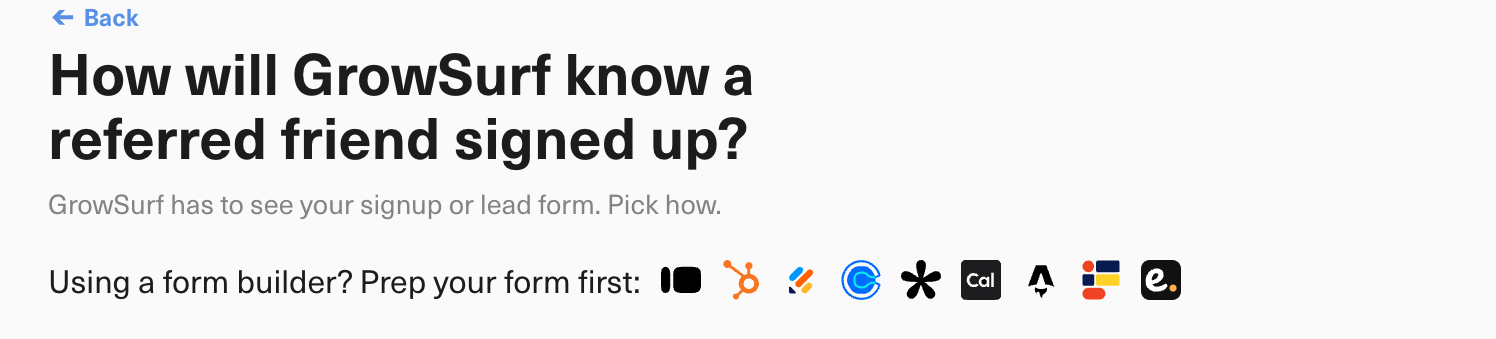
**Step 2:** Continue through the installation steps until you reach the step that asks how GrowSurf will know a referred friend signed up.
**Step 3:** Click the Jotform icon and follow the instructions GrowSurf shows (see image below).
**Step 4:** Then finish the remaining installation steps.
## How It Works
Jotform uses a Thank You page redirect to pass the respondent's email address, first name, and last name to GrowSurf. Jotform adds these values to the redirect URL, and the GrowSurf code on that page reads them and adds the respondent to your program as a referred friend.
In Jotform, open *Settings > Thank You Page*, choose "Redirect to an external link after submission", and add these to the end of your redirect URL:
```
?email={email}&first_name={name:first}&last_name={name:last}
```
Start with `&` instead of `?` if your Redirect URL already has a question mark in it.
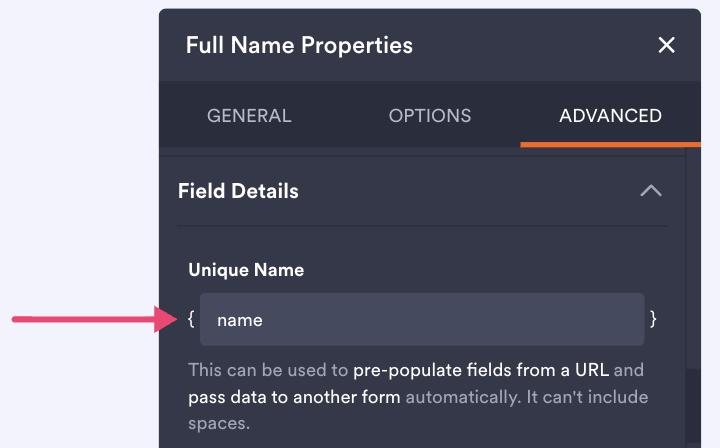
The words in curly braces are your Jotform field's Unique Name. Open a field's *Advanced* tab and read *Field Details* to confirm yours, and replace them above if they differ. If your form asks for a name in one field rather than two, use `&full_name={fullName}` in place of the two name parameters.
GrowSurf takes the first word of a whole name as the first name and the second word as the last name. If the name contains more than two words, it ignores any additional words. If Jotform does not recognize a field name, it sends the literal text (such as `{email}`), and GrowSurf treats it as missing. If no `email` parameter arrives, nothing is sent, and no participant is added.
## Additional Tips
* An embedded Jotform redirects the page it is embedded on, not just the form, so the GrowSurf code block belongs on your thank-you page.
* While following the instructions GrowSurf shows, you may skip any steps that you have already completed in a previous setup in Jotform.
* If you run into issues or have any questions, please reach out to [GrowSurf support](https://support.growsurf.com/) for assistance.
---
# Agent Instructions
This documentation is published with GitBook. GitBook is the documentation platform designed so that both humans and AI agents can read, navigate, and reason over technical content effectively. Learn more at gitbook.com.
## Querying This Documentation
If you need additional information that is not directly available in this page, you can query the documentation by asking a question.
Perform an HTTP GET request on the following URL with the `ask` and `goal` query parameters:
```
GET https://docs.growsurf.com/integrations/jotform.md?ask=&goal=
```
`ask` is the immediate question: it should be specific, self-contained, and written in natural language.
`goal` is what the user is ultimately trying to achieve, the reason they need the answer. Sharing it helps GitBook give you a better, more relevant answer. A goal is most helpful when it describes the outcome the user wants rather than restating the question. For example, with `ask=how do I create an API token`, a goal like `automate deployments from our CI pipeline` lets GitBook tailor the answer to that use case.
The response will contain a direct answer to the question and relevant excerpts and sources from the documentation.
Use this mechanism when the answer is not explicitly present in the current page, you need clarification or additional context, or you want to retrieve related documentation sections.