> For the complete documentation index, see [llms.txt](https://docs.growsurf.com/llms.txt). Markdown versions of documentation pages are available by appending `.md` to page URLs; this page is available as [Markdown](https://docs.growsurf.com/integrations/wise.md).
# Wise
Send affiliate payouts worldwide with Wise. Affiliates claim payouts in their Wise account and local currency.
Wise is a payout method for GrowSurf affiliate programs. Once connected, GrowSurf sends commission payouts from your Wise Business account to the affiliate's Wise email address. Wise handles the affiliate's account and local currency.
## Requirements
* A [Wise Business](https://wise.com/business/) account. Personal Wise accounts are not supported.
* An affiliate program. Wise payouts are not available on referral programs.
* Payouts are funded from your Wise Business balance. Wise's transfer fees are paid by you, on top of each payout. They never reduce what an affiliate receives.
## How to Set Up
**Step 1**: Create an API token in your Wise Business account by following the [steps below](#create-your-wise-api-token), and paste it into the Wise card in *Program Editor > 4. Options > Integrations*. GrowSurf verifies the Business profile and automatically creates the Wise webhook subscriptions required for transfer updates, refunds, and payout failures.
**Step 2**: Once connected, Wise is ready to use. You can optionally customize the *Confirmation page* and the *Confirm Payout Destination* email by clicking *Show advanced settings (optional)*. Alternatively, you can edit the *Confirm Payout Destination* email in *Program Editor > 3. Emails*. Both are shared across all enabled payout methods.
**Step 3**: Affiliates choose Wise as their payout method in their portal settings. When they have a payout coming, GrowSurf emails them a link to the *Confirmation page*, where they confirm their payout details. GrowSurf then shows each affiliate’s payout status, so you can see who is ready to be paid.
{% hint style="info" %}
Each affiliate claims their payout through a link Wise emails them. Affiliates with a Wise account can claim it to their Wise balance; affiliates without one create an account to claim. A payout stays pending until the affiliate claims it, and Wise cancels and refunds anything unclaimed after 7 days.
{% endhint %}
### Create your Wise API token
{% stepper %}
{% step %}
**Log in to Wise**
[Log in to your Wise account](https://wise.com/your-account/) and open your business profile.
{% endstep %}
{% step %}
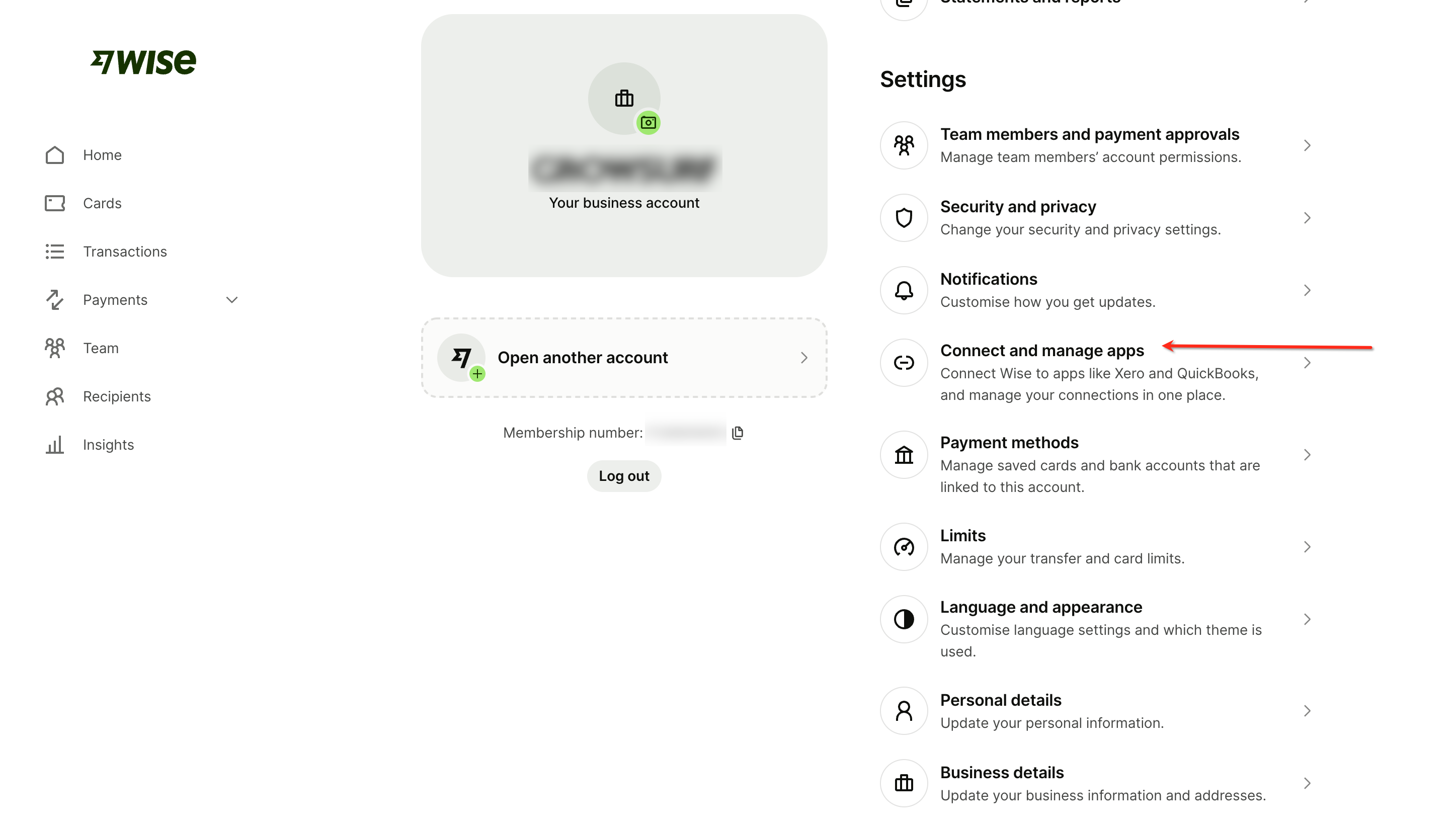
**Go to Connect and manage apps**
Navigate to *Settings > Connect and manage apps*.
{% endstep %}
{% step %}
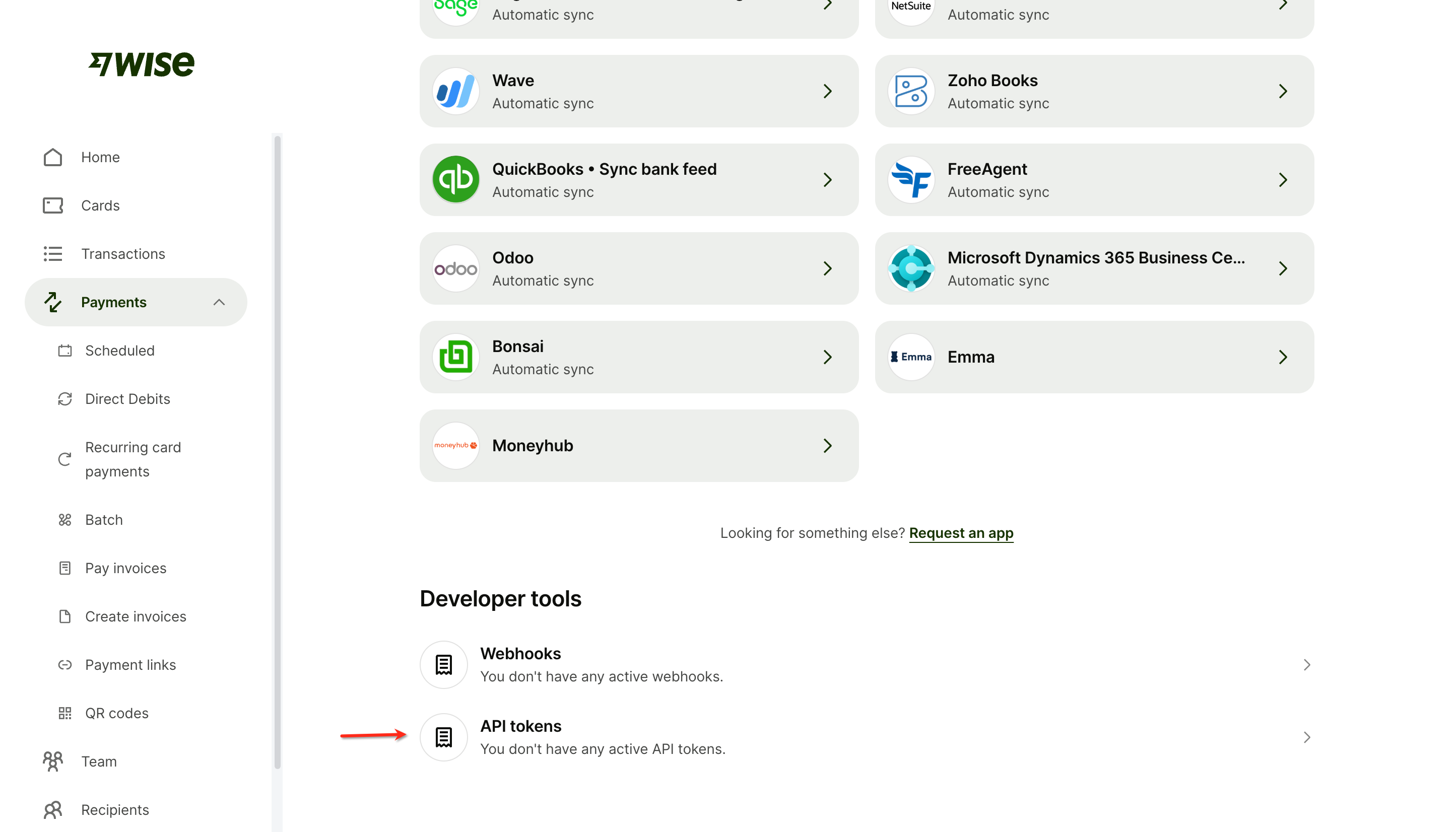
**Open API tokens**
Scroll down to *Developer tools* and click *API tokens*.
{% endstep %}
{% step %}
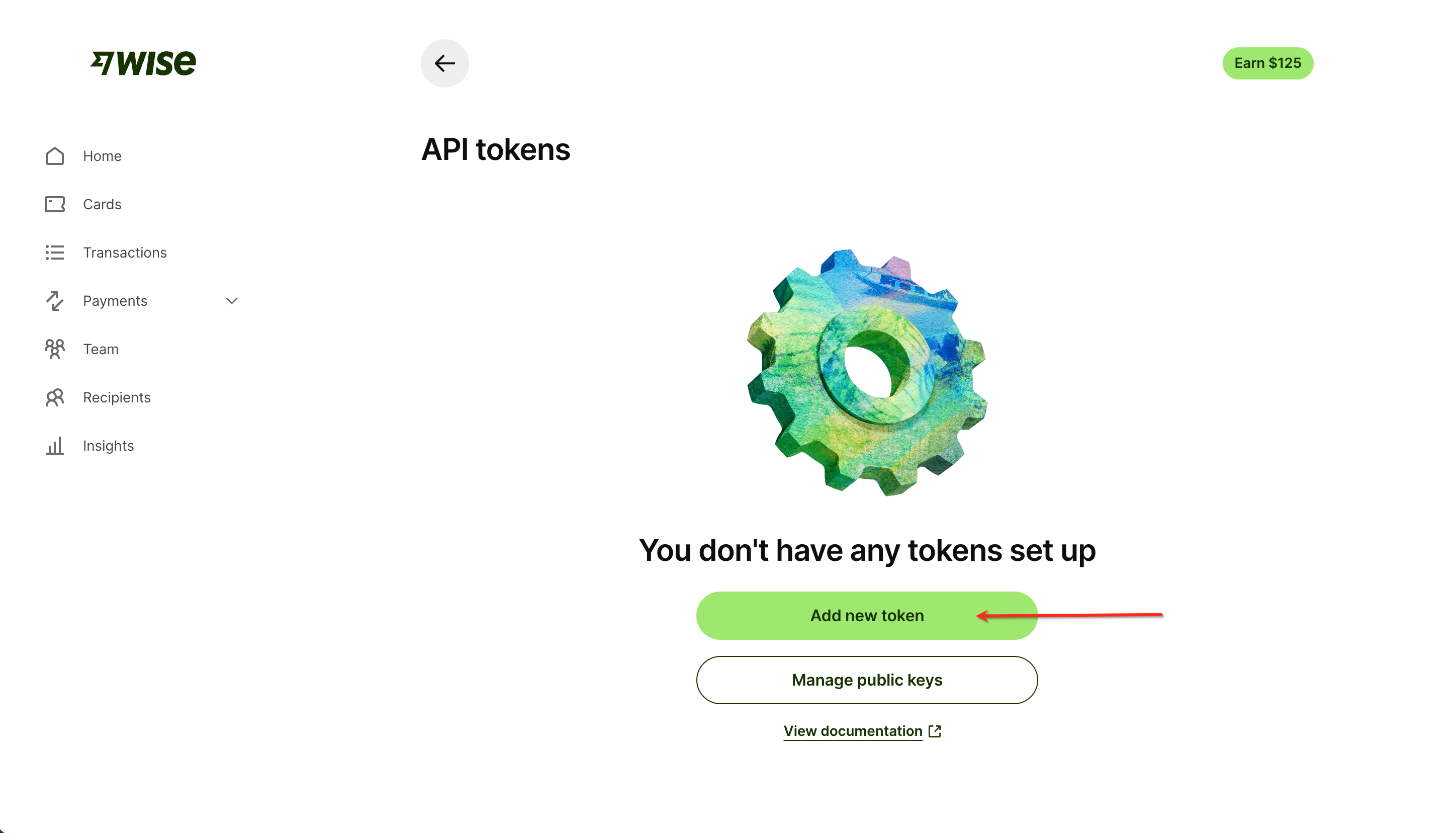
**Add a new token**
Click *Add new token*.
{% endstep %}
{% step %}
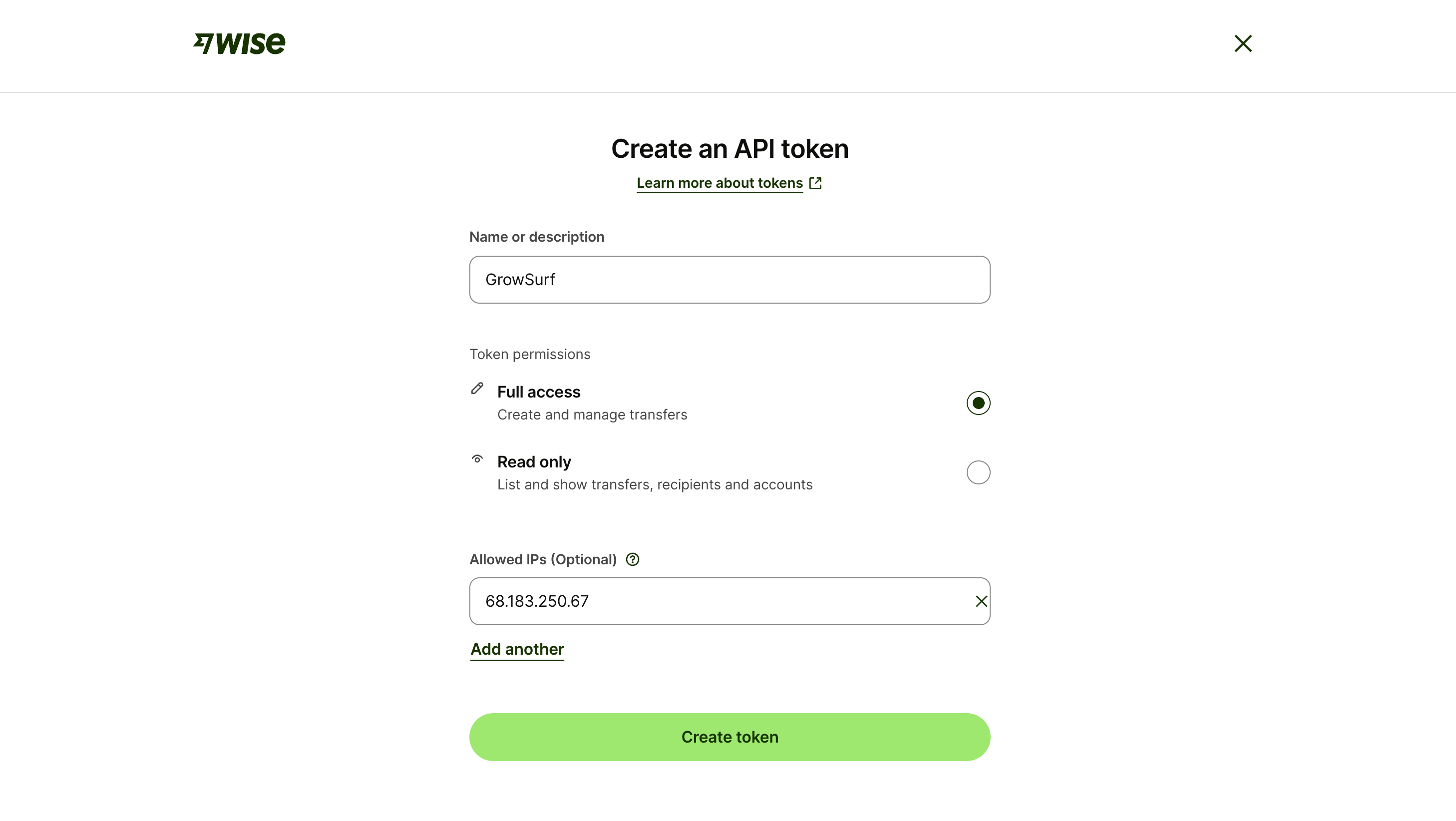
**Enter the token details**
* **Name or description:** Enter "GrowSurf"
* **Token permissions:** Select **Full access**
* **Allowed IPs (optional):** Enter the GrowSurf IP address `68.183.250.67`
{% endstep %}
{% step %}
**Create the token**
Click *Create token*.
{% endstep %}
{% step %}
**Paste the token into GrowSurf**
Copy the token value (it looks something like `492e86e5-2xxxxxxxxxxxxxxxxxxxxxxxxxx`) and paste it into the Wise card in *Program Editor > 4. Options > Integrations*.
{% endstep %}
{% endstepper %}
{% hint style="info" %}
**Note:** GrowSurf never sees or stores bank details. An affiliate confirms only the email address on their Wise account, and GrowSurf sends the payout to that Wise recipient.
{% endhint %}
## For Affiliate Programs
Pay approved commissions in bulk. From your program's *Payouts* page, click *Pay Affiliates*, review the eligible affiliates and amounts, and confirm. GrowSurf creates the whole batch in your Wise account, ready to fund. After you fund it in Wise, each payout stays pending until the affiliate claims it and Wise completes the transfer. GrowSurf then marks the included commissions paid.
Affiliates without a confirmed Wise payout destination are listed separately in the payout preview so you know who still needs to finish setup.
### Fund a payout batch in Wise
{% stepper %}
{% step %}
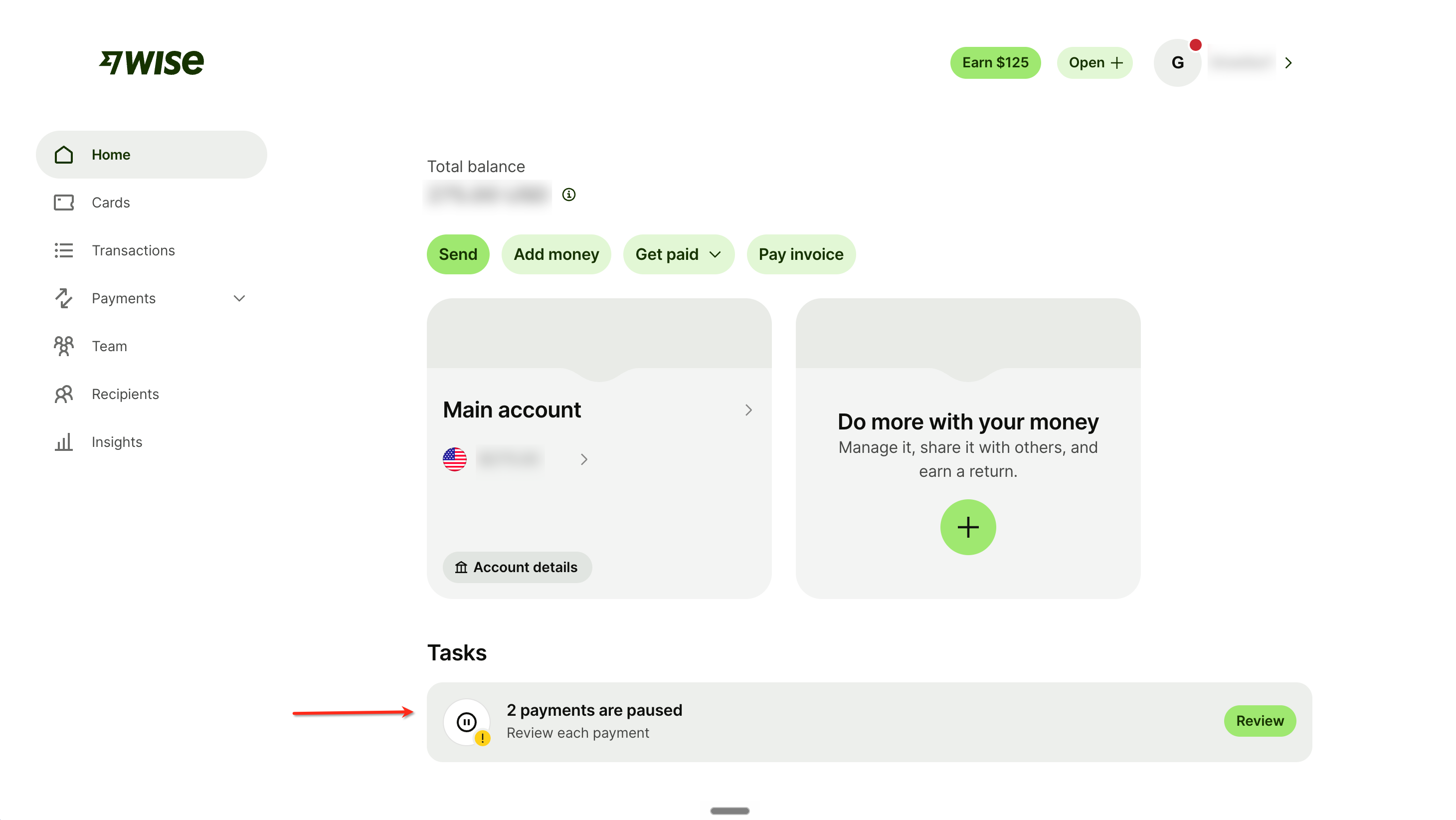
**Open the paused payments task**
After you confirm the payout in GrowSurf, sign in to Wise. On the Wise home page, find the paused payments task and click *Review*.
{% endstep %}
{% step %}
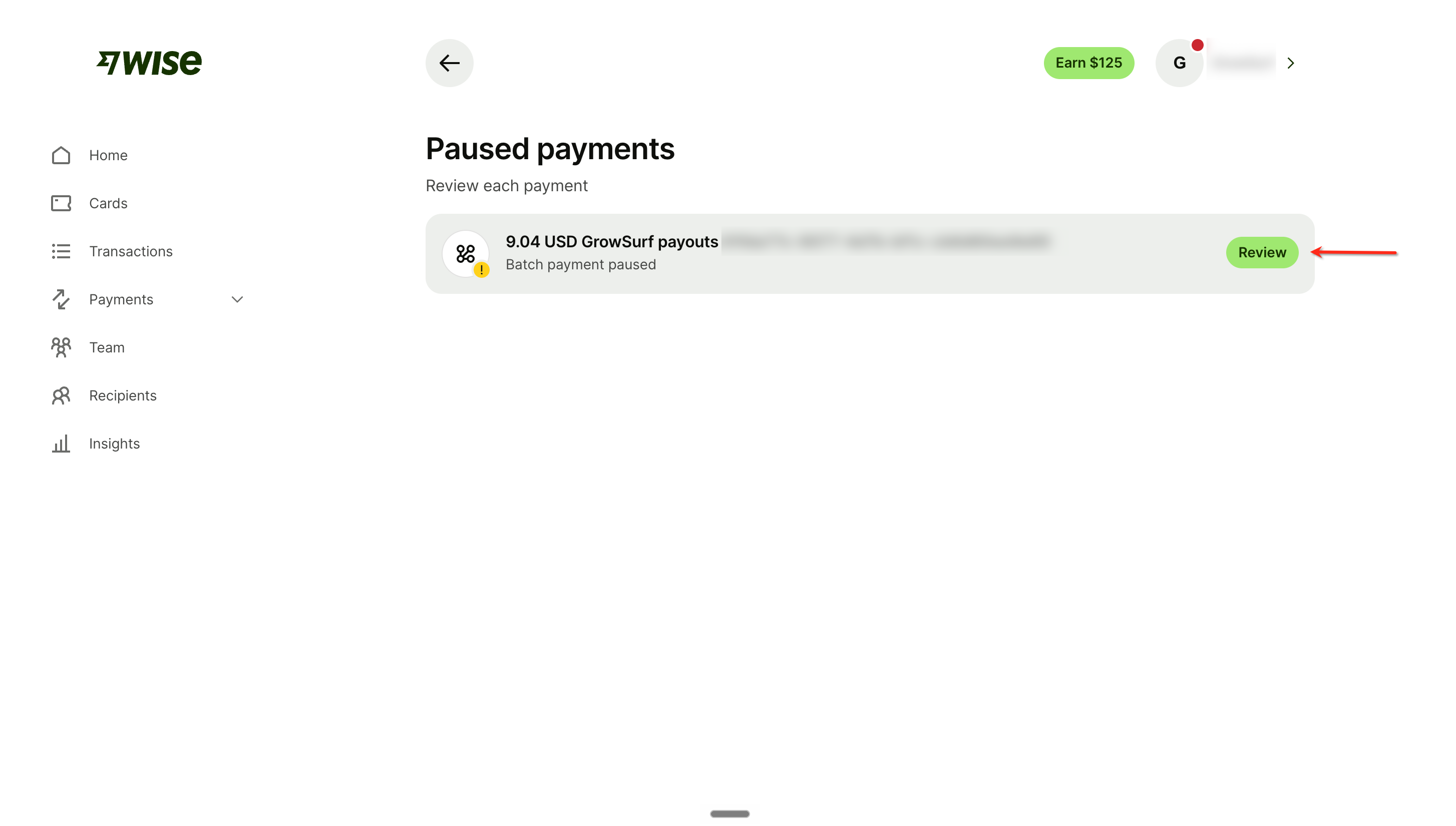
**Choose the GrowSurf payout batch**
Find the GrowSurf payout batch and click *Review*.
{% endstep %}
{% step %}
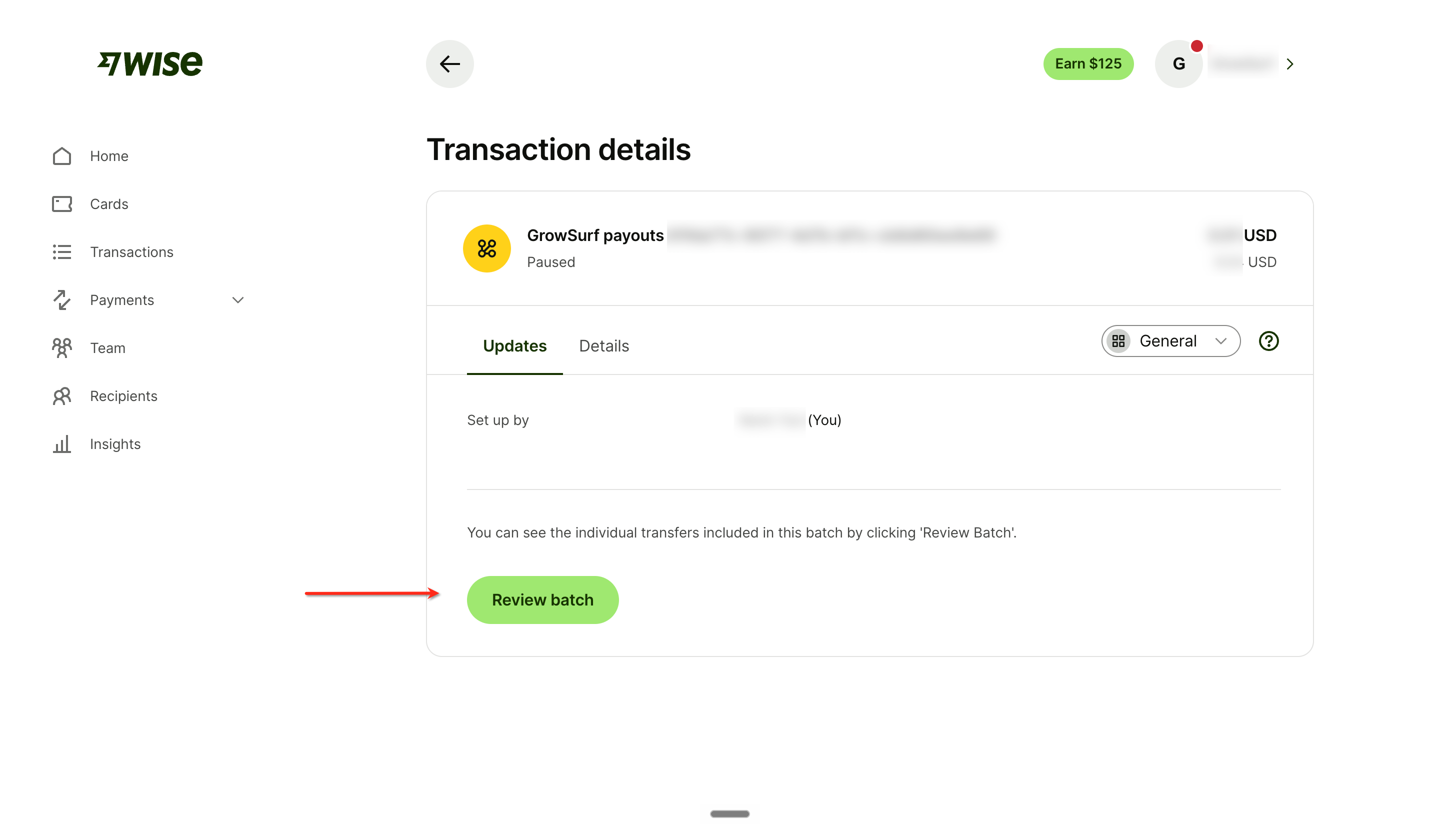
**Review the batch**
Check the batch amount, then click *Review batch*.
{% endstep %}
{% step %}
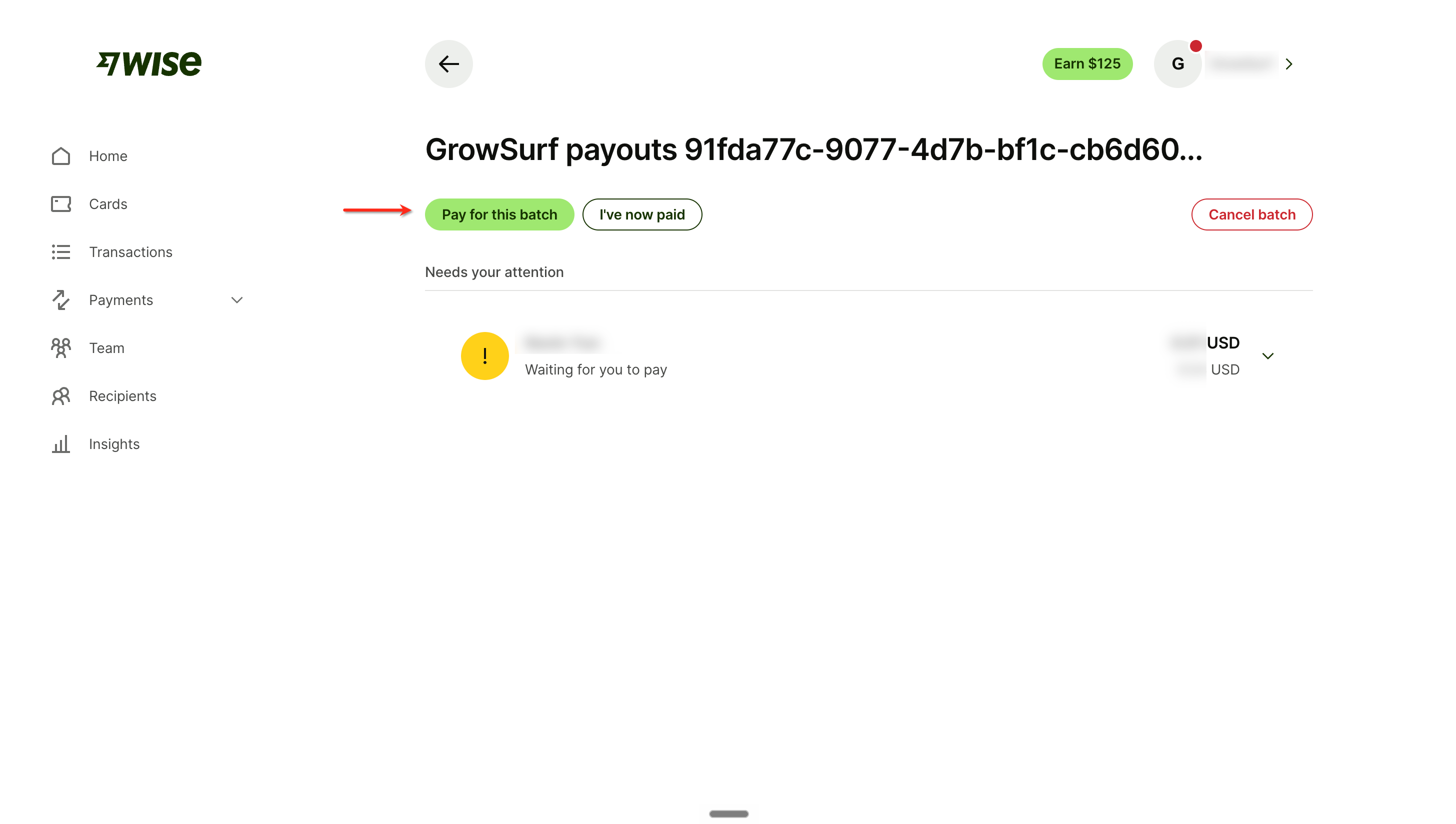
**Pay for the batch**
Check the individual payouts, then click *Pay for this batch*.
{% endstep %}
{% step %}
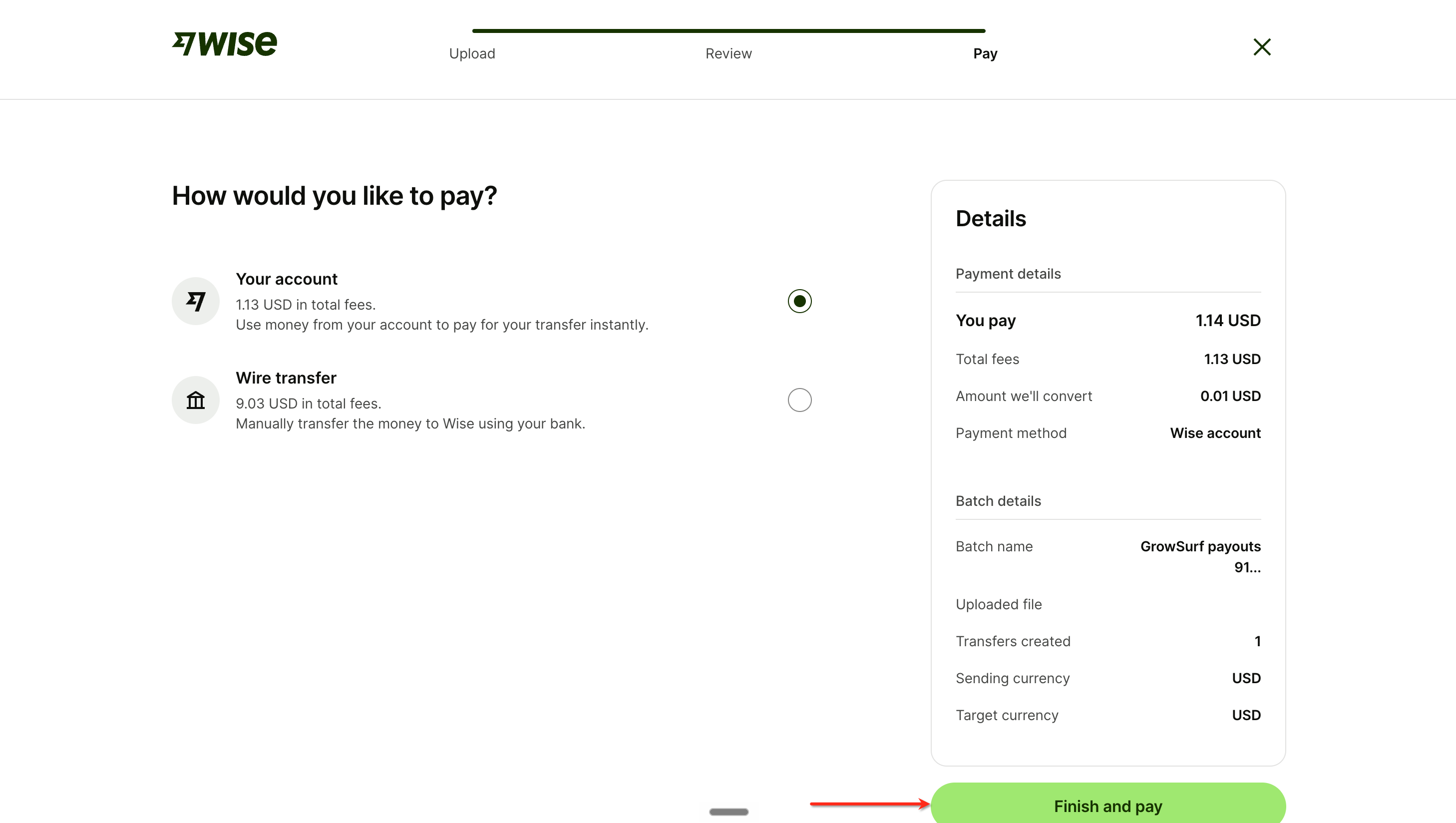
**Choose how to pay**
Choose a payment method, review Wise's fee and the payout total, then click *Finish and pay*. Wise charges its fee on top of the amount sent to the affiliate.
{% endstep %}
{% step %}
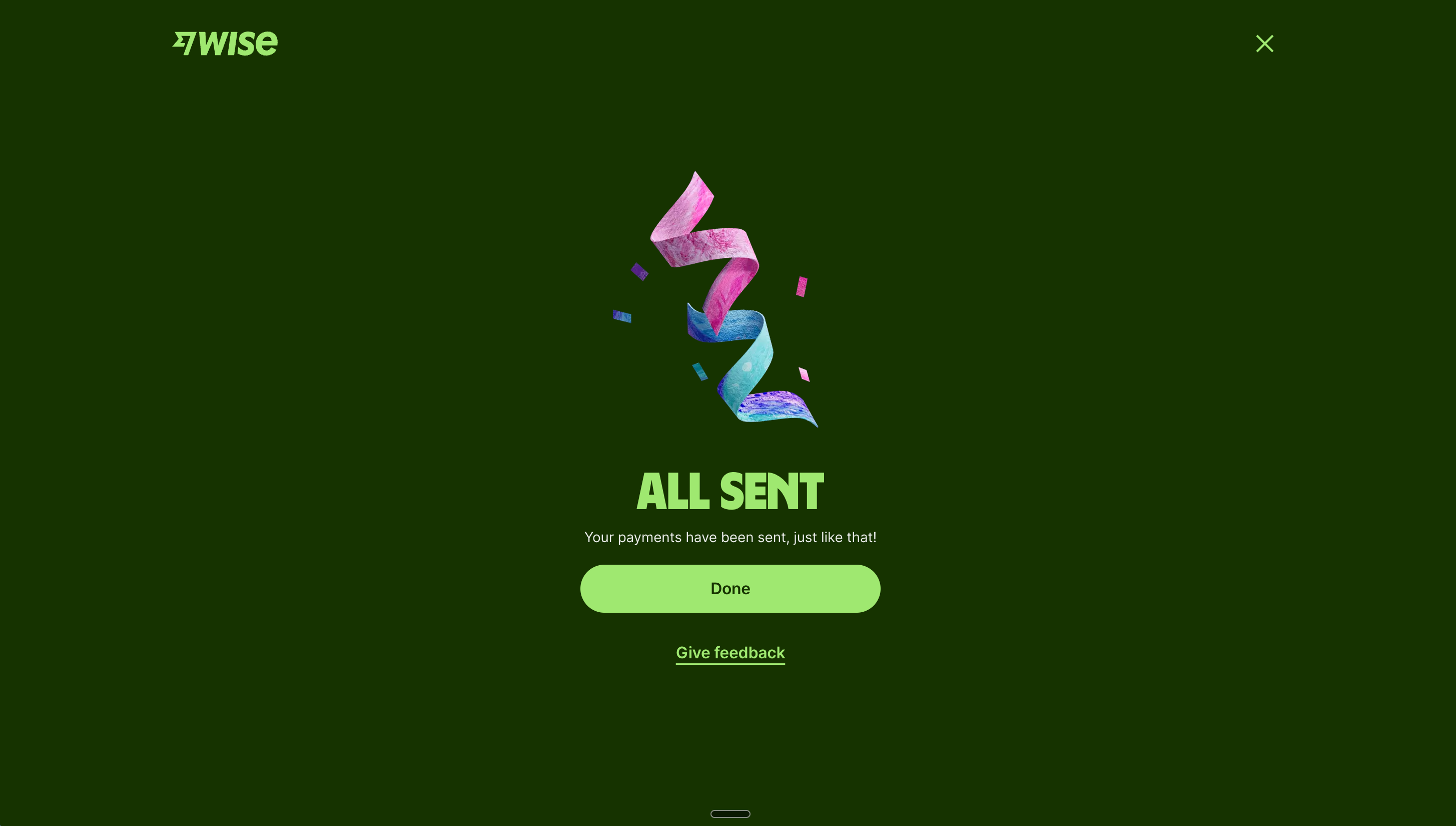
**Confirm the batch was sent**
Wise confirms when the batch has been sent.
{% endstep %}
{% endstepper %}
### What the affiliate sees
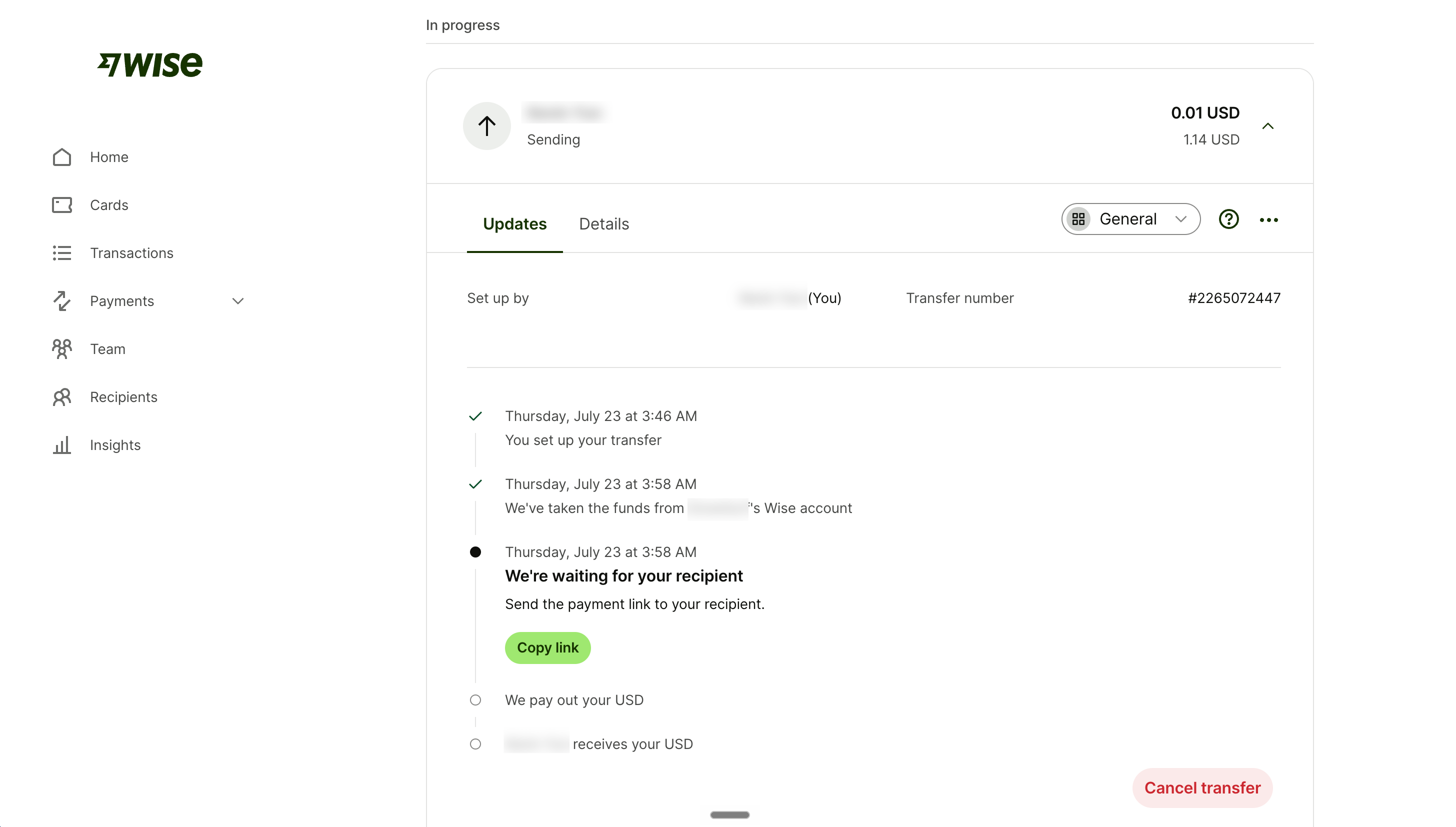
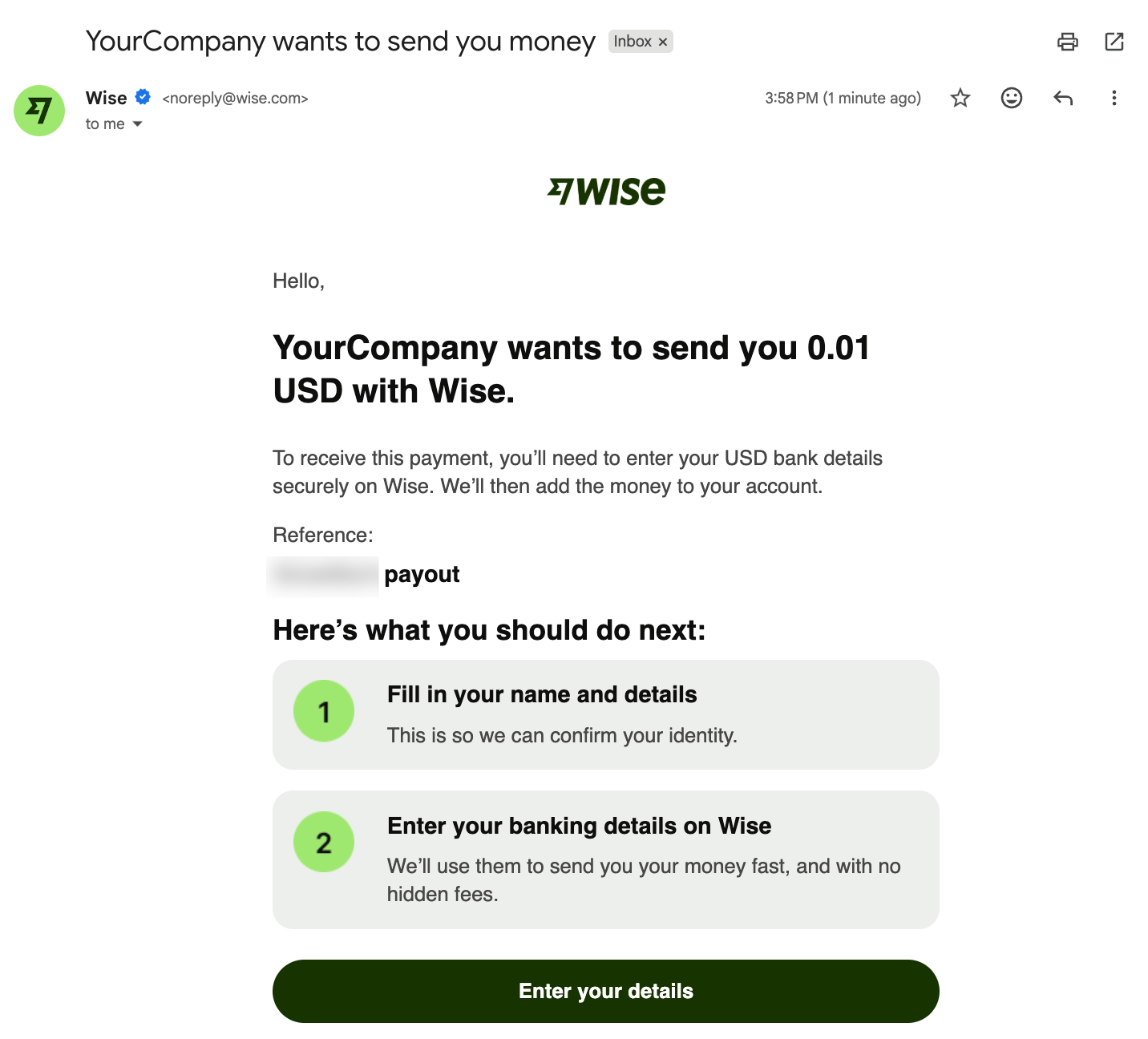
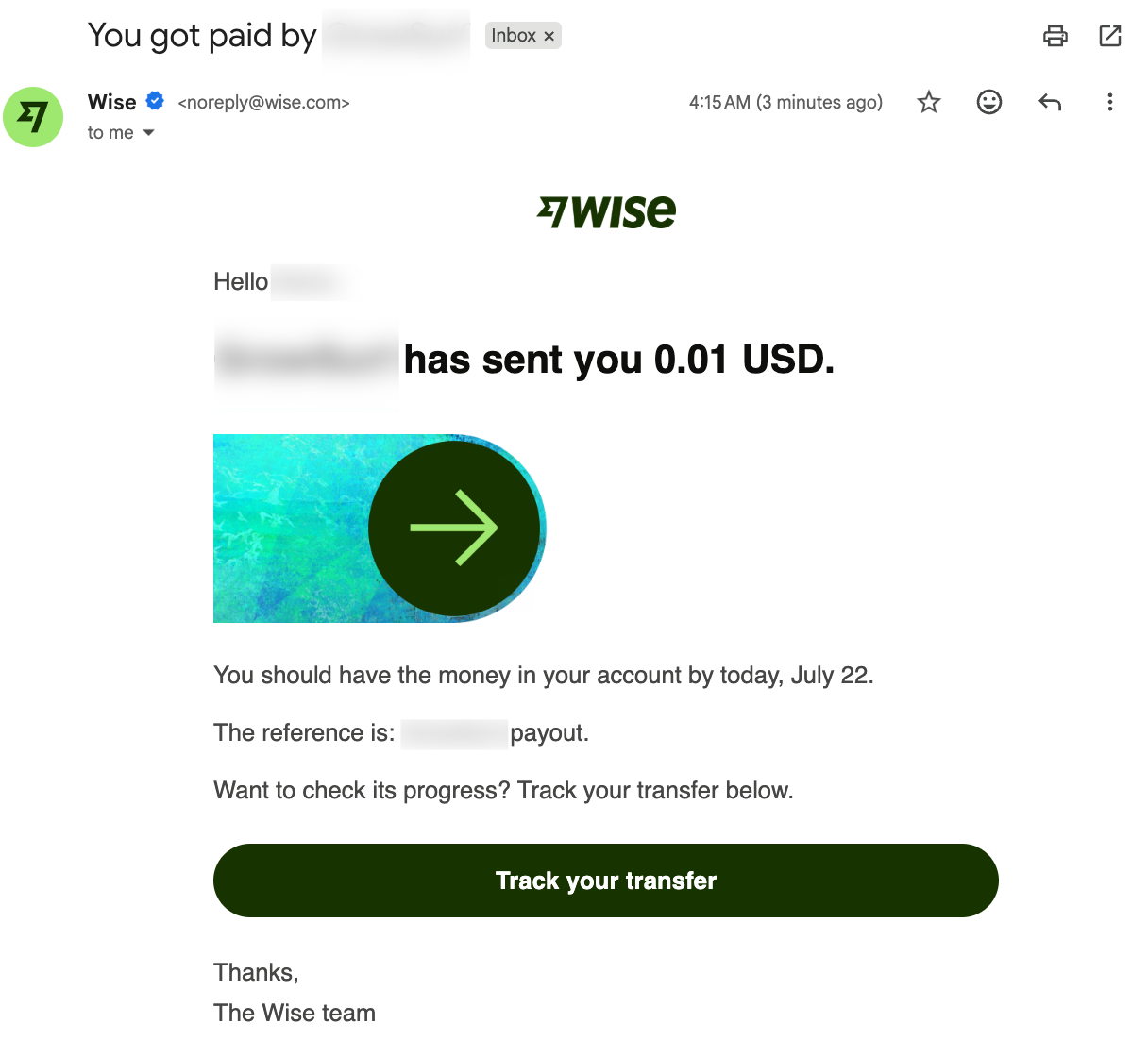
After you fund the batch, Wise shows the transfer as waiting for the recipient and emails the affiliate a secure claim link.
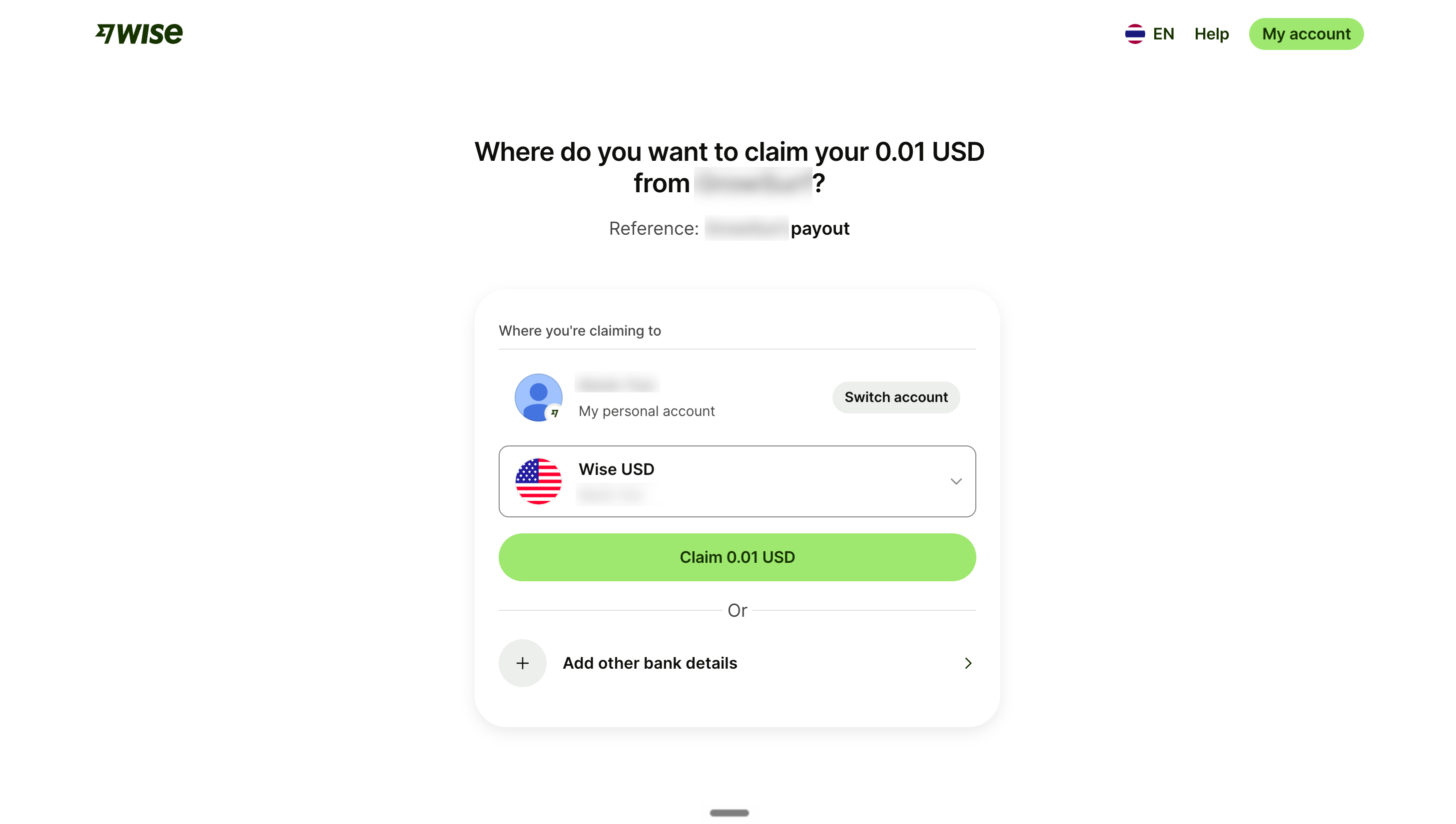
The affiliate clicks *Enter your details* in the Wise email and follows Wise's steps to receive the payout.
If the affiliate already has a Wise account, they can choose an eligible Wise balance. They can also add other bank details.
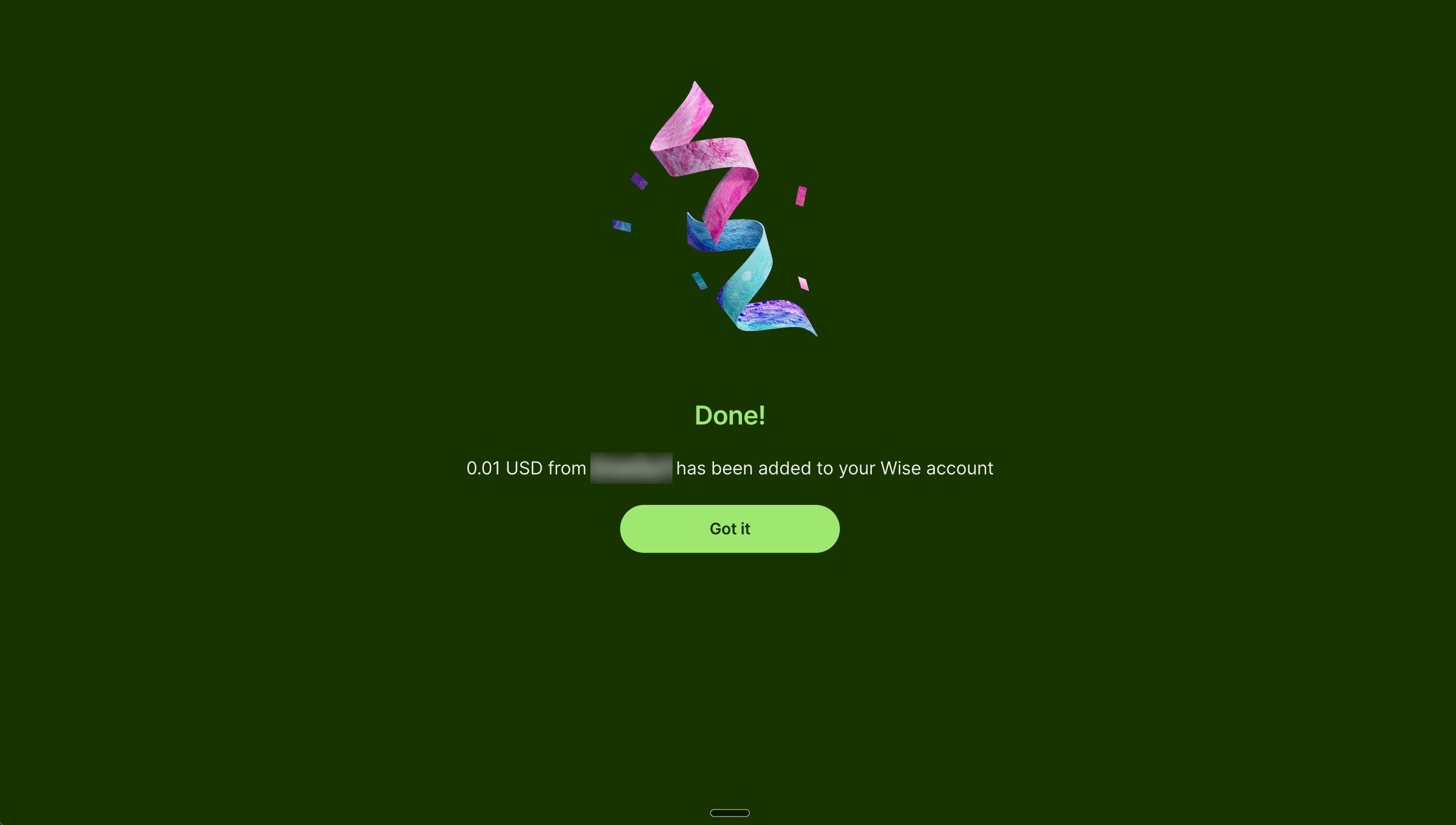
Wise confirms when the payout has been added to the selected account.
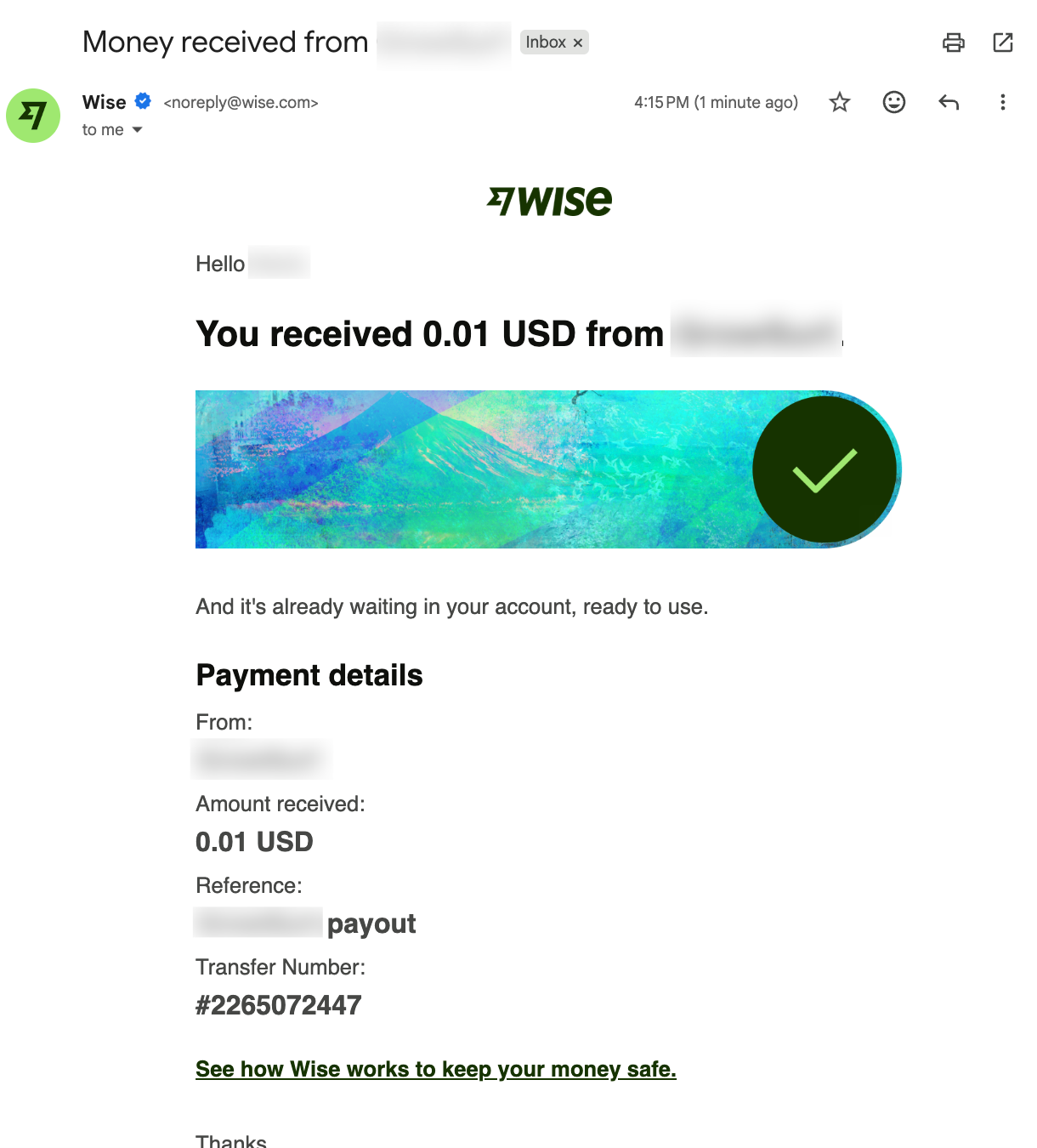
Wise also emails the affiliate when the payout is sent and when the money is available.
#### Troubleshooting
If a Wise payout runs into an issue, it stays under *Queued* with the status *Needs review*. GrowSurf cannot safely resend it until the earlier transfer is resolved.
* *Check Wise status*: GrowSurf checks the earlier transfer. If it is safe to retry, the action changes to *Retry via Wise*.
* *Retry via Wise*: GrowSurf safely retries the payout.
{% hint style="warning" %}
Do not create a separate payout in Wise. This could pay the affiliate twice.
{% endhint %}
## FAQ
**Can I use PayPal and Wise on the same program?**\
Yes, on an affiliate program. Each affiliate chooses the payout method they want to be paid with, and batch payouts group each method separately.
**Can I use Wise on a referral program?**\
No. Wise payouts are available for affiliate programs only. For referral program cash rewards, use [PayPal](https://docs.growsurf.com/integrations/paypal).
**What currencies does Wise support?**\
Payouts follow Wise's supported currencies and countries. See [Wise's coverage](https://wise.com/help/) for the current list.
**What happens if a payout fails?**\
Failed payouts stay visible on your *Payouts* page and can be retried. The affiliate's commission is never marked paid unless the transfer went through.
---
# Agent Instructions
This documentation is published with GitBook. GitBook is the documentation platform designed so that both humans and AI agents can read, navigate, and reason over technical content effectively. Learn more at gitbook.com.
## Querying This Documentation
If you need additional information that is not directly available in this page, you can query the documentation by asking a question.
Perform an HTTP GET request on the following URL with the `ask` and `goal` query parameters:
```
GET https://docs.growsurf.com/integrations/wise.md?ask=&goal=
```
`ask` is the immediate question: it should be specific, self-contained, and written in natural language.
`goal` is what the user is ultimately trying to achieve, the reason they need the answer. Sharing it helps GitBook give you a better, more relevant answer. A goal is most helpful when it describes the outcome the user wants rather than restating the question. For example, with `ask=how do I create an API token`, a goal like `automate deployments from our CI pipeline` lets GitBook tailor the answer to that use case.
The response will contain a direct answer to the question and relevant excerpts and sources from the documentation.
Use this mechanism when the answer is not explicitly present in the current page, you need clarification or additional context, or you want to retrieve related documentation sections.