> For the complete documentation index, see [llms.txt](https://docs.growsurf.com/llms.txt). Markdown versions of documentation pages are available by appending `.md` to page URLs; this page is available as [Markdown](https://docs.growsurf.com/integrations/zapier/tutorials.md).
# Tutorials
We'll walk you through creating Zapier Zaps.
Table of contents
| Scenario |
| ---------------------------------------------------------------------- |
| [Example 1: New Participant Reward](#example-1-new-participant-reward) |
| [Example 2: New Participant](#example-2-new-participant) |
| [Example 3: Campaign Ended](#example-3-campaign-ended) |
| [Example 4: Trigger Referral](#example-4-trigger-referral) |
## Example 1: New Participant Reward
In this example, we'll connect GrowSurf to Coupon Carrier, which will let us send a unique coupon to a participant when they reach a referral goal.
### [Step 1: Click to get access to GrowSurf on Zapier](/integrations/zapier.md#getting-started)
Once logged into Zapier, click the **+ Create** button in the top-left corner.
{% hint style="warning" %}
**Note:**
* Only the GrowSurf team owner's programs will show up when you connect to Zapier. If you are setting the Zap up as a team member, you will need to connect to Zapier using the team owner's GrowSurf account.
* If you used Google to sign up for GrowSurf, you'll need to set a password before connecting to Zapier. Go to the [Sign In](https://app.growsurf.com/signin) page and click "Forgot password" to create one.
{% endhint %}
### Step 2: Set up the Zap trigger
For the **Trigger** step, search for and select **GrowSurf** from the app list.
In the **Trigger Event** field, choose **New Participant Reward**. Then, in the **Account** field, select your connected GrowSurf account, or click **Connect a new account** to link a new one. Next, click **Continue**.
Then select your program from the **Campaign** field. After that, click **Continue**, and click the **Test Trigger** button.
Click **Continue with selected record**, or click **Find a record**, select the record, and then click the continue button.
{% hint style="warning" %}
Test data is sample data for setting up the Zap. Once the Zap is live, it receives real program data.
{% endhint %}
After clicking on **Continue**, you'll be directed to the Action step, where you can configure the action of transmitting a coupon code to the winner.
### Step 2.5: Set up Zap Filters
Check whether you need a [Zap Filter](https://docs.growsurf.com/automate-rewards/zapier/using-filters). If you answer yes to either question below, follow its instructions. If you answer no to both, skip to [Step 3](#step-3-set-up-the-zap-action-s).
#### **Question 1: Is there at least one double-sided reward for your program?**
If you have a double-sided reward, two trigger events occur: one for the referrer and one for the referred person. Therefore, you will need to create two distinct Zaps, each with its own triggers, to account for both events. Alternatively, instead of using a [Zapier Filter](https://zapier.com/learn/getting-started-guide/filters/), you can use [Zap Paths](https://help.zapier.com/hc/en-us/articles/8496288555917-Add-branching-logic-to-Zaps-with-Paths) to create a single Zap that handles both trigger events.\
\
Here's how you can discern between the two Zaps by using a [Zapier Filter](https://zapier.com/learn/getting-started-guide/filters/) and the `Participant Is Referrer` property:
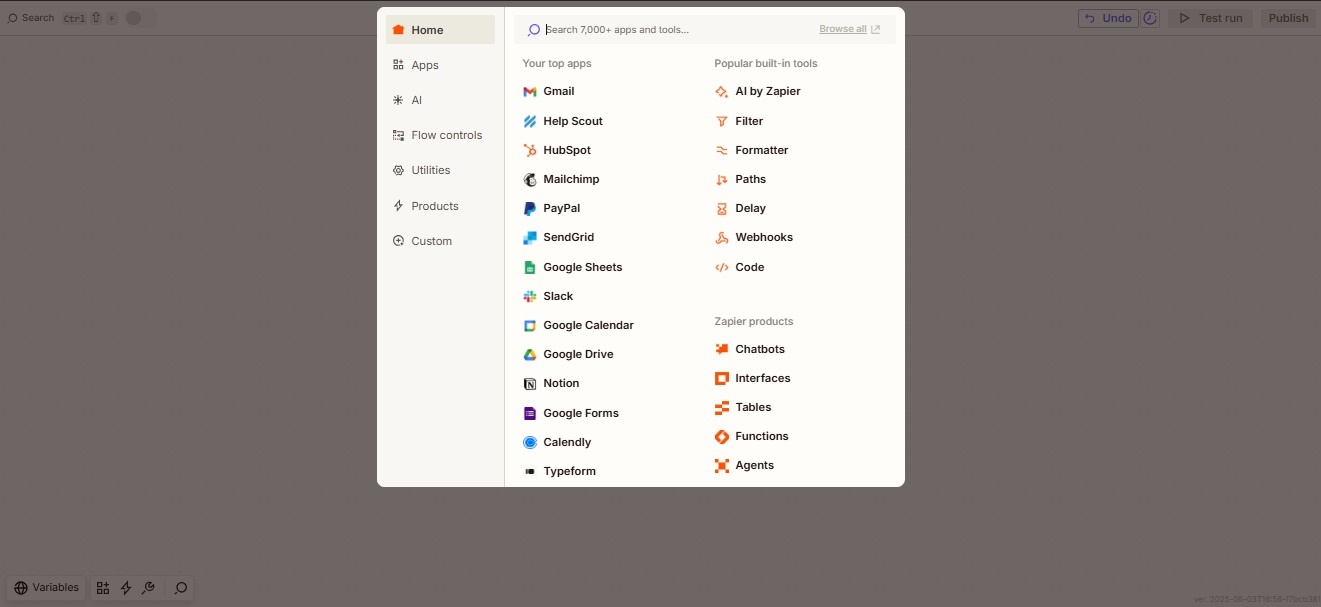
**Step A:** Once you have set up your Zap trigger, the next step is to add a **Zapier Filter** before proceeding to the Action step. Search for and select **Filter** from the app list.
**Step B:** Select `Participant Is Referrer` from the first dropdown.
**Step C:** Set the next field to `(Text) Exactly matches`*.*
**Step D:** For the last field, type `true` or `false`, depending on what you are trying to achieve. Referrers will have `Participant Is Referrer` as `true` and the referred person will have `Participant Is Referrer` as `false`.
**Step E:** Click **Continue** to test the conditions.\
\
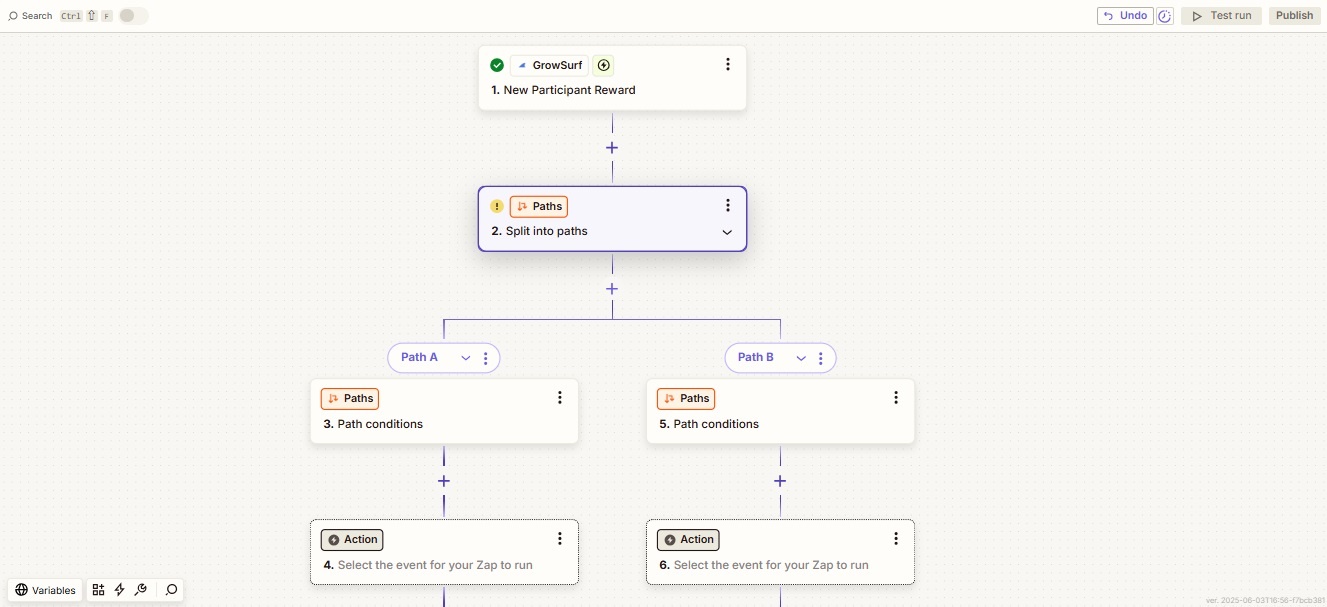
Here's how you can use [Zap Paths](https://help.zapier.com/hc/en-us/articles/8496288555917-Add-branching-logic-to-Zaps-with-Paths) to create a single Zap that handles both trigger events:\
\
**Step A:** Once you have set up your Zap trigger, the next step is to add a **Path** before proceeding to the Action step. Search for and select **Path** from the app list.
**Step B:** After selecting **Path**, you’ll see **Path A** and **Path B** (you can add more paths if needed).
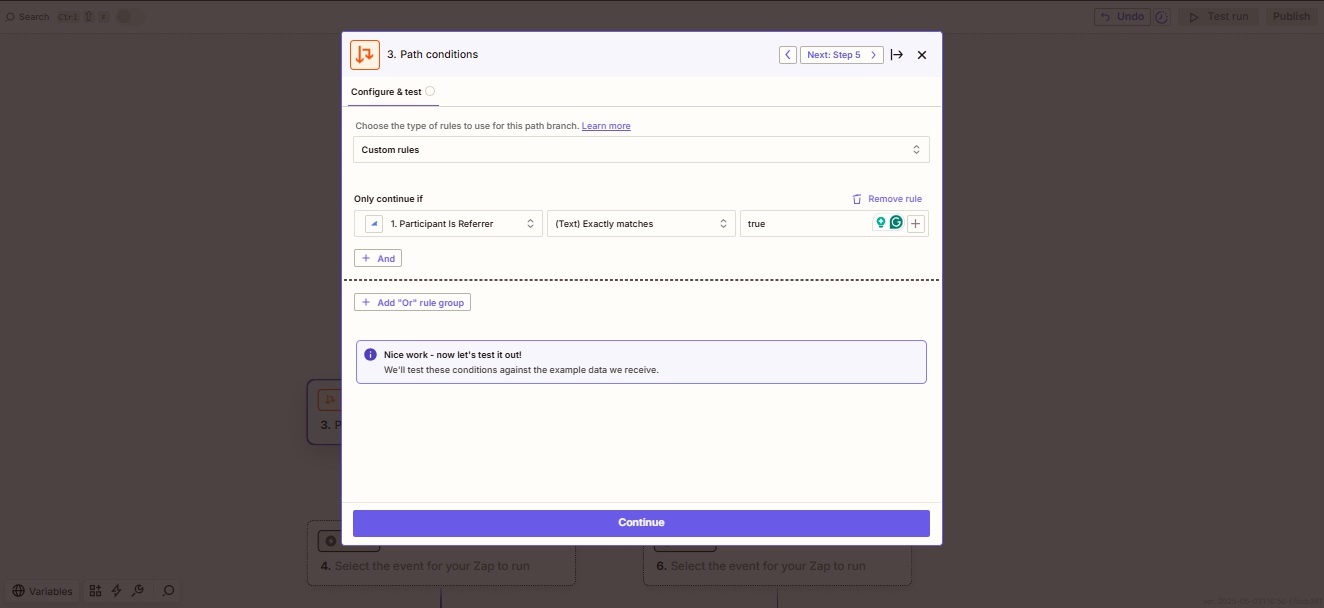
To configure Path A, click on Path A, select Custom Rules, and choose `Participant Is Referrer` from the first dropdown menu. In the next field, select `(Text) Exactly matches`, and in the last field, input either `true` or `false`, depending on your desired outcome. Participants who referred someone should have `Participant Is Referrer` set to `true`, while those who were referred should have it set to `false`.
**Step C:** Click **Continue** to test the conditions.
**Step D:** To exit Path A, click outside of the setup window. To set up Path B for the referred participant, click on **Path B**, select **Custom Rule** and choose `Participant Is Referrer` from the first dropdown menu. In the next field, select `(Text) Exactly matches`, and in the last field, enter `false`.
**Question 2: Is manual reward approval enabled for your program?**
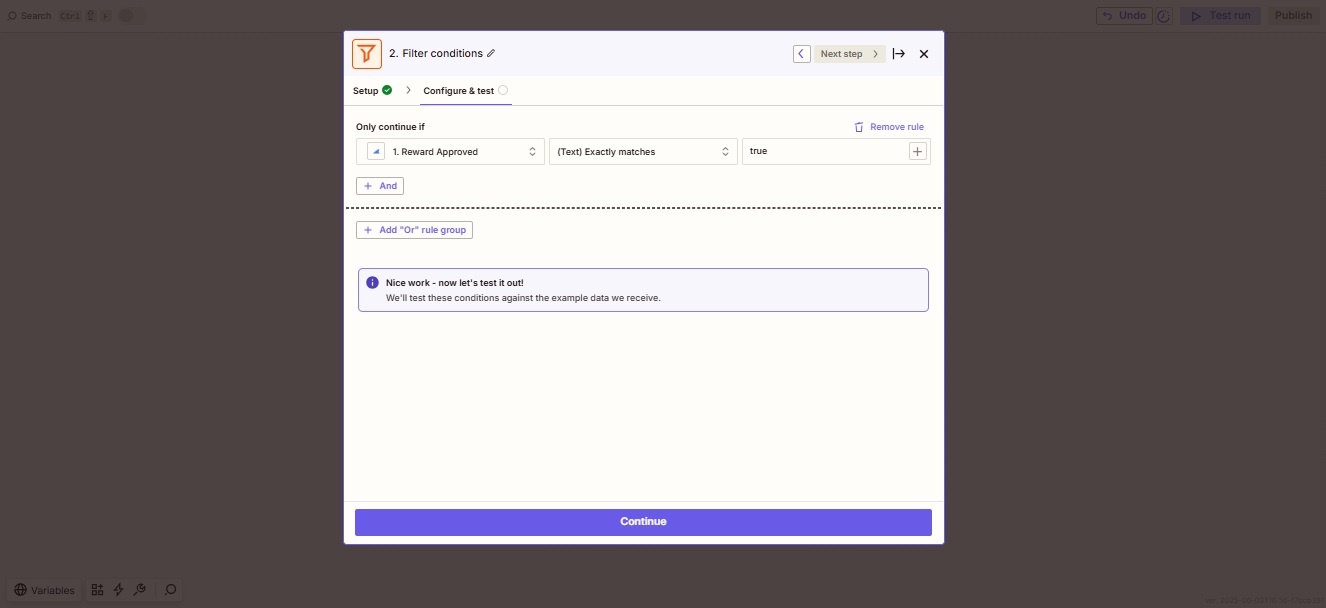
When manual reward approval is enabled, two Zapier events are triggered: one when the reward is pending approval and another when it is approved. To differentiate between pending and approved rewards, use a [Zapier Filter](https://zapier.com/learn/getting-started-guide/filters/) with the `Reward Approved` property.
**Step A:** After setting up your Zap trigger, the next step is to insert a **Filter** before moving on to the Action step. To do this, search for and select **Filter** from the app list.
**Step B:** Select`Reward Approved` from the first dropdown, set the next field to `(Text) Exactly matches`, and enter `true` or `false` in the last field depending on your objective. Rewards that have been approved will have `Reward Approved` set to `true`.
**Step C:** Click **Continue** to test the conditions.
### Step 3: Set up the Zap action(s)
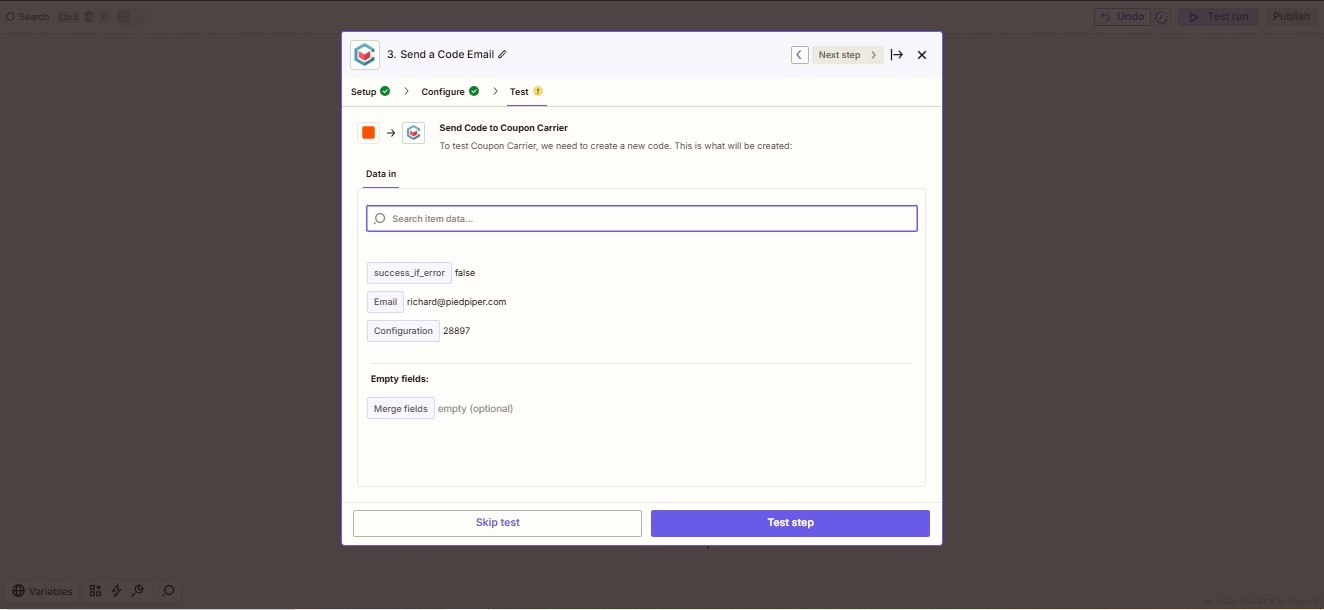
For the **Action** step, search for and select **Coupon Carrier** from the app list. In the **Event** field, choose **Send a Code Email** from the dropdown menu. Then, in the **Account** field, select your connected Coupon Carrier account, or click **Connect a new account** to link a new one. Next, click **Continue**.
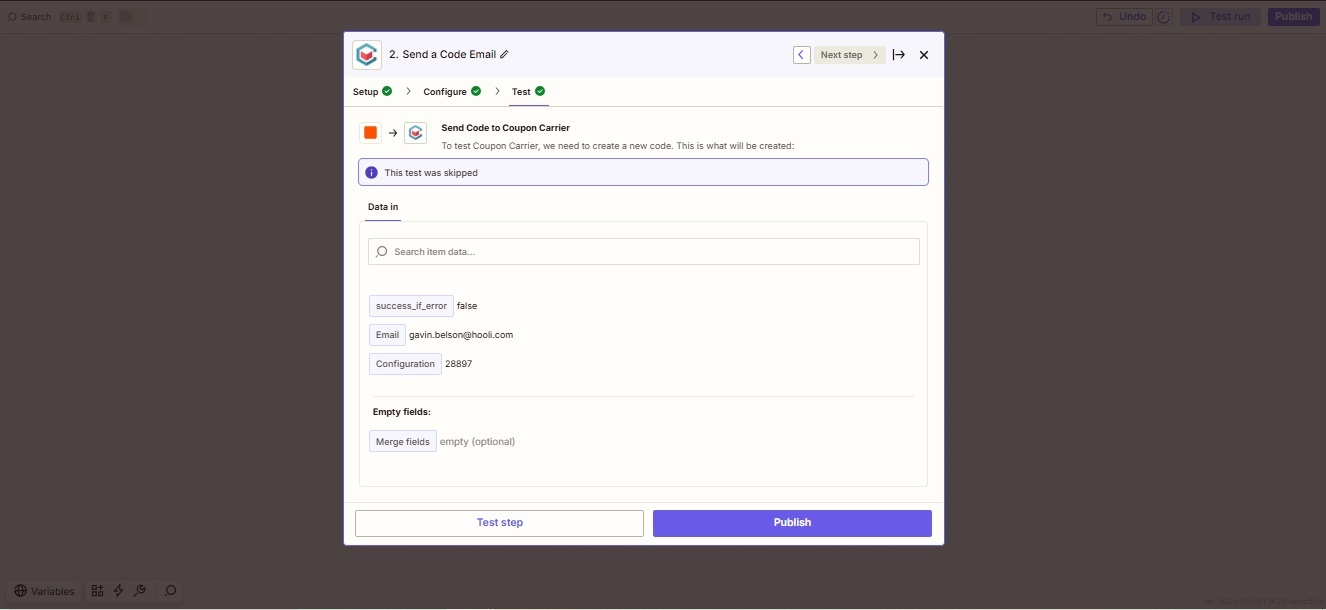
For the **Email Address** field, choose `Participant Email` from the dropdown menu. In the **Configuration** field, select the coupon email you want to trigger. Then, click **Continue**, followed by **Test step** to confirm it's working correctly.
Then, click **Continue**, followed by **Test step** to confirm it's working correctly.
Click **Publish**. Your Zap is now live and will automatically send a coupon whenever a GrowSurf participant meets their referral goal and unlocks a reward.
{% hint style="info" %}
**Need multiple actions?**
A [multi-step Zap](https://help.zapier.com/hc/en-us/articles/8496257774221-Set-up-your-Zap-action) allows you to incorporate multiple action steps into your Zap. For instance, in example 1, you can send a coupon using Coupon Carrier and then add another action, such as receiving a notification in Slack, all in the same Zap.
{% endhint %}
## Example 2: New Participant
In this example, we'll connect GrowSurf to HubSpot. Whenever a new participant is added to your GrowSurf referral program, we'll add/update them as a HubSpot contact.
### [Step 1: Get access to GrowSurf on Zapier](/integrations/zapier.md#getting-started)
Once logged into Zapier, click the **+ Create** button in the top-left corner.
{% hint style="warning" %}
**Note:** Only the GrowSurf team owner's programs will show up when you connect to Zapier. If you are setting the Zap up as a team member, you will need to connect to Zapier using the team owner's GrowSurf account.
{% endhint %}
### Step 2: Set up the Zap trigger
For the **Trigger** step, search for and select **GrowSurf** from the app list.
In the **Trigger Event** field, choose **New Participant**. Then, in the **Account** field, select your connected GrowSurf account, or click **Connect a new account** to link a new one. Next, click **Continue**.
Then select your program from the **Campaign** field. After that, click **Continue**, and click the **Test Trigger** button.
Click **Continue with selected record**, or click **Find a record**, select the record, and then click the continue button.
You've now successfully set up the Zap to trigger whenever a new participant is added to your GrowSurf program. Now it's time to create the action of adding/updating the new GrowSurf participant.
### Step 3: Set up the Zap action(s)
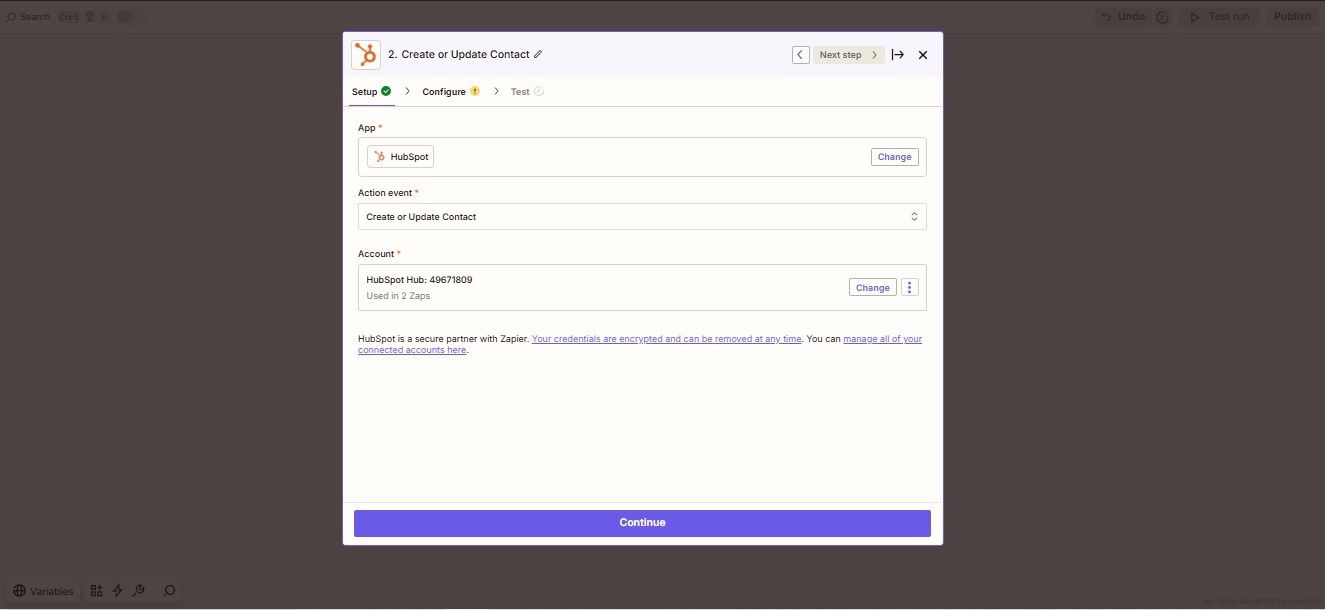
For the **Action** step, search for and select **HubSpot** from the app list.
Then in the **Event** field, select **Create or Update Contact** from the dropdown menu. Then, in the **Account** field, select your account, or click **Connect a new account** to link a new one. Next, click **Continue**.
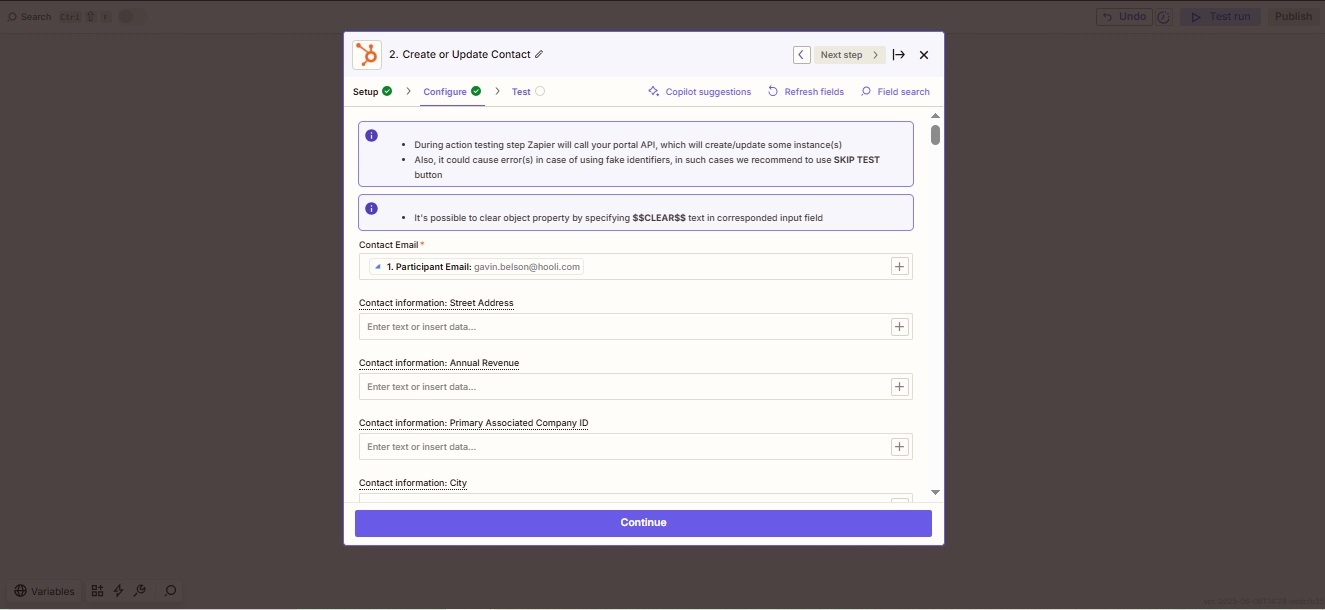
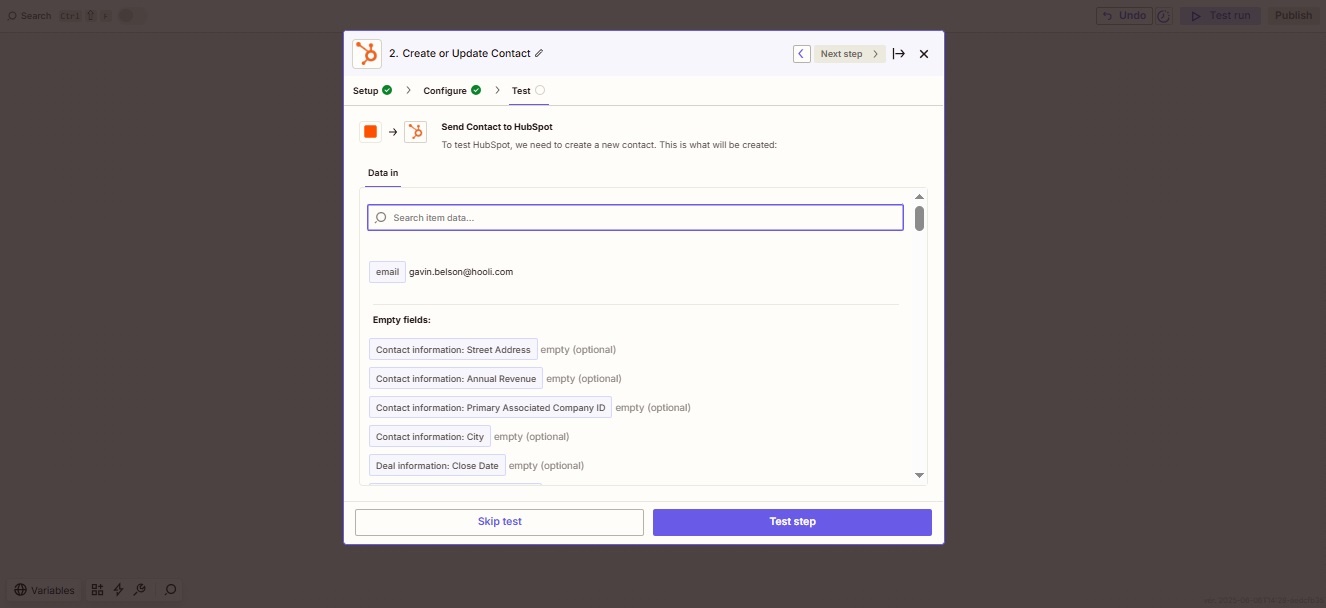
Then select **Participant Email** from the dropdown menu in the **Contact Email** field. Once you've filled in all the properties that you want to save to the HubSpot contact, click **Continue.**
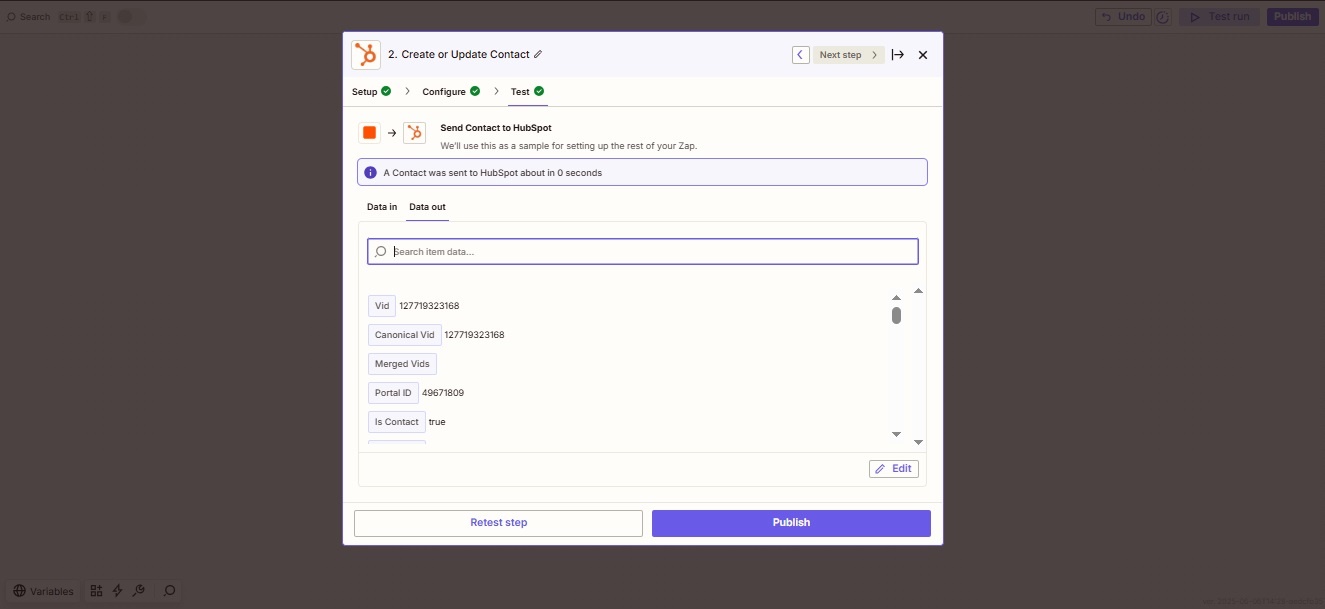
Then, click the **Test step** button.
Click **Publish**. Your Zap is now live and will create/update new HubSpot contacts whenever a new GrowSurf participant is added.
{% hint style="info" %}
**Need multiple actions?**
A [multi-step Zap](https://help.zapier.com/hc/en-us/articles/8496257774221-Set-up-your-Zap-action) allows you to incorporate multiple action steps into your Zap. For instance, in example 2, the Zap adds/updates GrowSurf participants to HubSpot, but you could add another action, such as receiving a notification in Slack, all in the same Zap.
{% endhint %}
## Example 3: Campaign Ended
In this example, we'll email the results of the referral program to your company CEO when the GrowSurf program ends.
### [Step 1: Get access to GrowSurf on Zapier](/integrations/zapier.md#getting-started)
Click on the link above to view how to access GrowSurf on Zapier.
{% hint style="warning" %}
**Note:** Only the GrowSurf team owner's programs will show up when you connect to Zapier. If you are setting the Zap up as a team member, you will need to connect to Zapier using the team owner's GrowSurf account.
{% endhint %}
Once logged into Zapier, click the **Create Zap** button on the sidebar menu.
### Step 2: Set up the Zap trigger
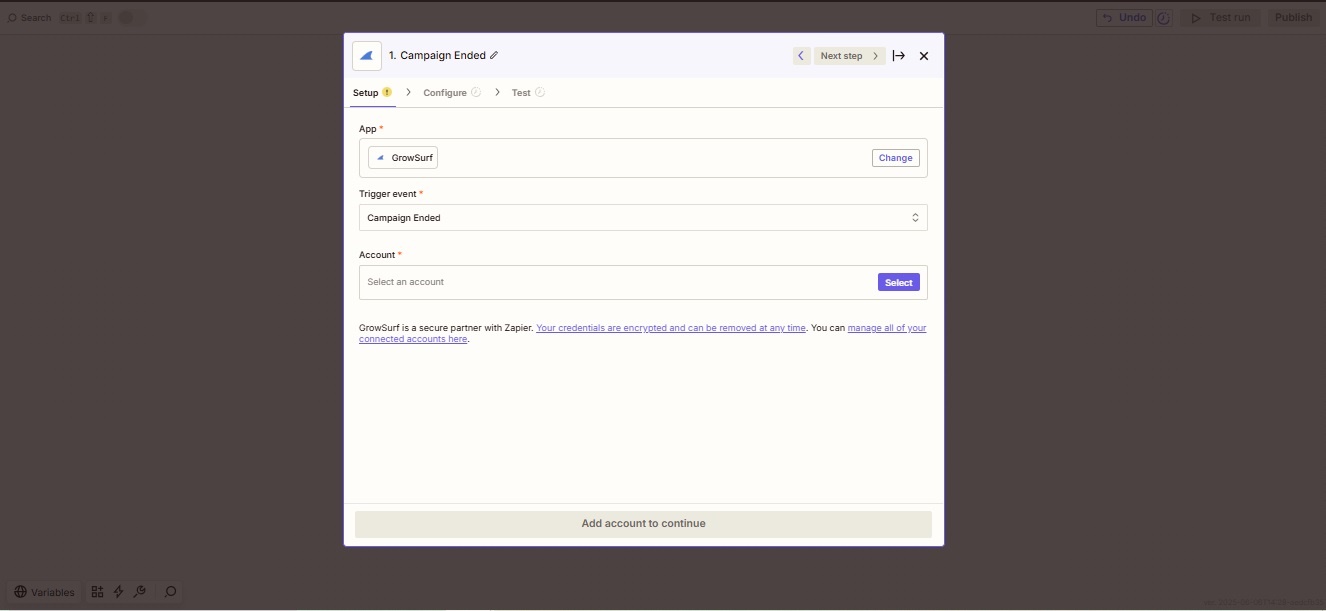
For the **Trigger** step, search for and select **GrowSurf** from the app list.
In the **Trigger Event** field, choose **Campaign Ended**. Then, in the **Account** field, select your connected GrowSurf account, or click **Connect a new account** to link a new one. Next, click **Continue**.
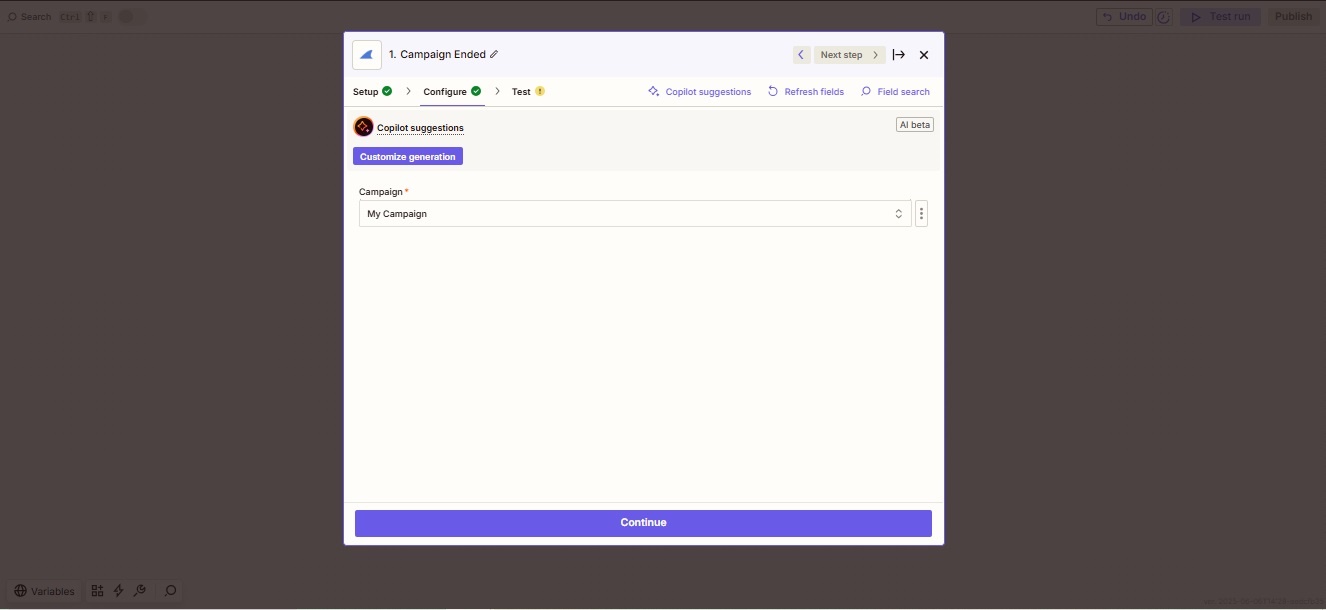
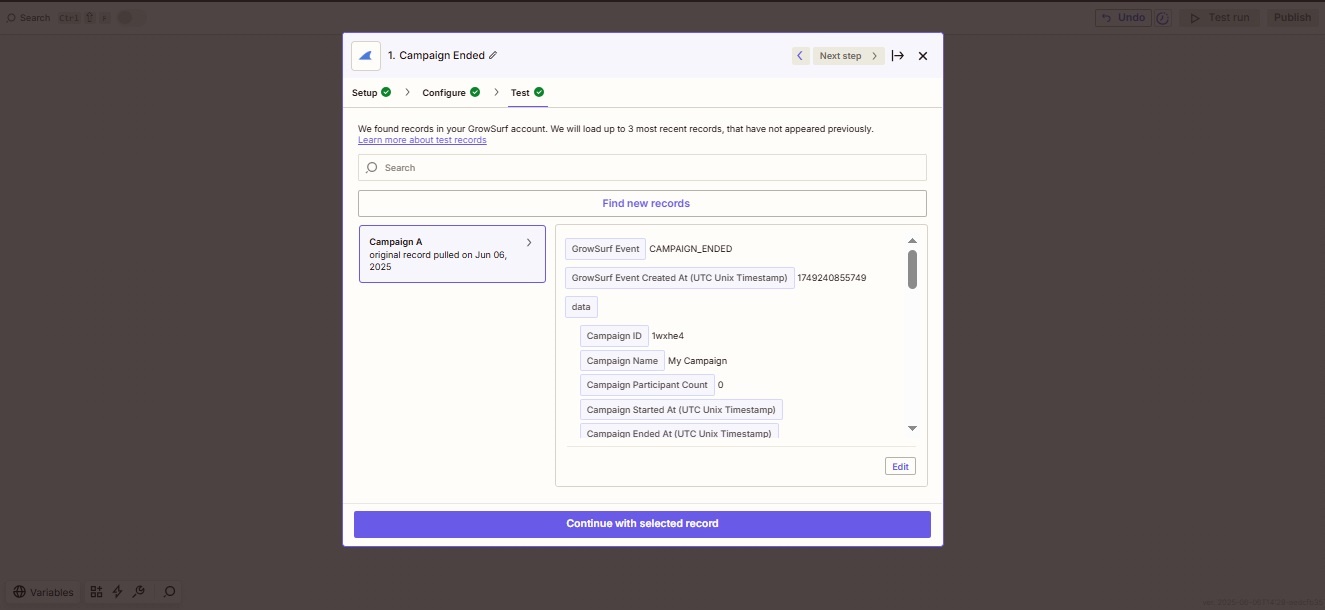
Then, select your program and click the **Continue** button. Next, click the **Test trigger** button.
Click **Continue with selected record**, or click **Find a record**, select the record, and then click the continue button.
You have successfully configured the Zap to trigger once your GrowSurf program ends. The next step is to create the action of sending out an email.
### Step 3: Set up the Zap action(s)
For the **Action** step, search for and select **Email** from the app list.
Then, in the **Action event** field, select **Send Outbound Email** from the dropdown menu. Next, click **Continue**.
Type in the CEO's email in the **To** field. Then, in the **Subject** field, type **Referral Program Results**.
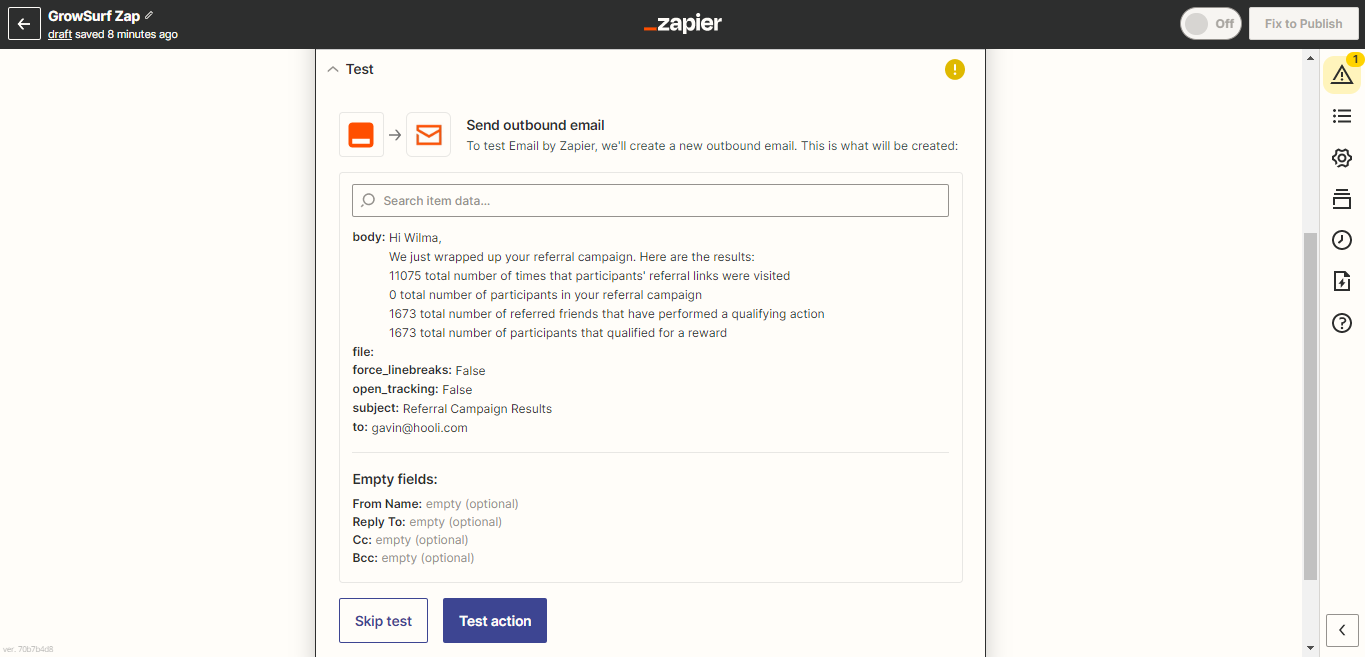
In the **Body** field, enter the custom message below. To insert the appropriate ``s, click the **+** button, then select the desired option from the dropdown menu. When you're done, click **Continue**.
> Hi Gavin,
>
> We just wrapped up your referral program. Here are the results:
>
> * `` The total number of times participants' referral links were visited
> * `` The total number of participants in your referral program
> * `` The total number of referred friends that have performed a qualifying action
> * `` The total number of participants who qualified for a reward
Here's what your screen should look like:
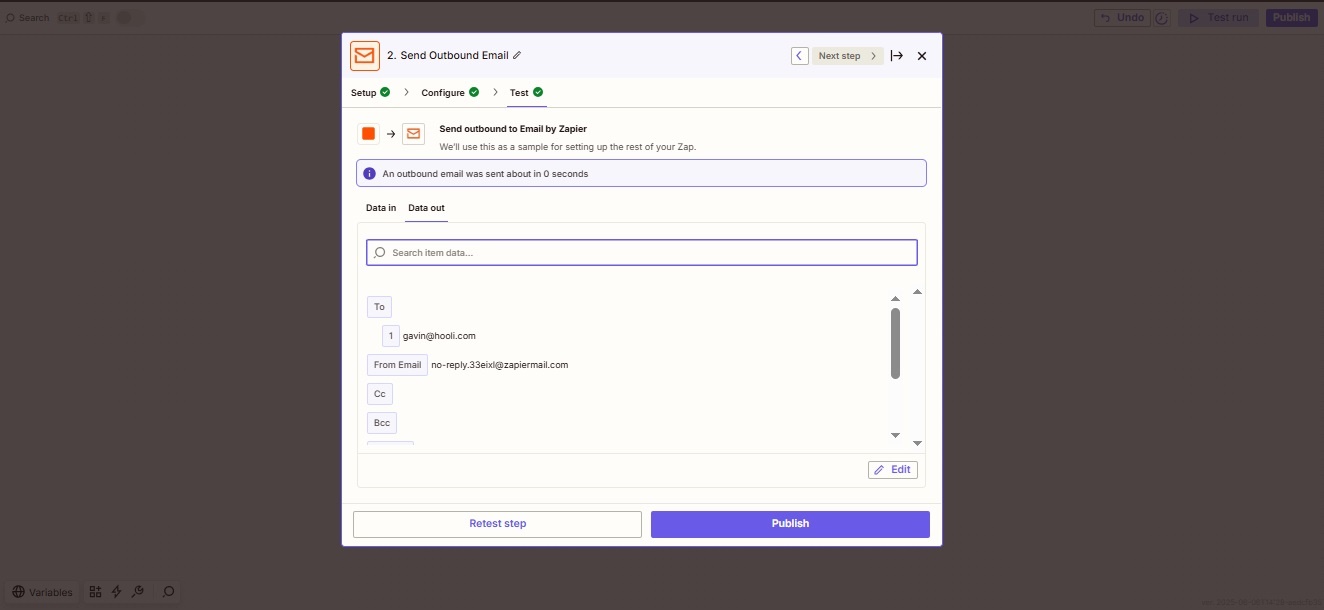
Then, click the **Test step** button.
Click **Publish**. Your Zap is now live and will send out an email report when your GrowSurf program ends.
{% hint style="info" %}
**Need multiple actions?**
A [multi-step Zap](https://help.zapier.com/hc/en-us/articles/8496257774221-Set-up-your-Zap-action) allows you to incorporate multiple action steps into your Zap. For instance, in example 3, you can send out an email report with Email by Zapier and then add another action, such as receiving a notification in Slack, all in the same Zap.
{% endhint %}
## Example 4: Trigger Referral
In this example, we'll use Zapier to trigger a referral in GrowSurf whenever a new payment is recorded in Stripe.
### [Step 1: Get access to GrowSurf on Zapier](/integrations/zapier.md#getting-started)
Once logged into Zapier, click the **+ Create** button in the top-left corner.
{% hint style="warning" %}
**Note:** Only the GrowSurf team owner's programs will show up when you connect to Zapier. If you are setting the Zap up as a team member, you will need to connect to Zapier using the team owner's GrowSurf account.
{% endhint %}
### Step 2: Set up the Zap trigger
For the **Trigger** step, search for and select **Stripe** from the app list. Then, in the **Trigger Event** field, choose **New Payment**. Click the **Account** field and select your Stripe account, or click **Connect a new account** to link a new one. Next, click **Continue**.
\
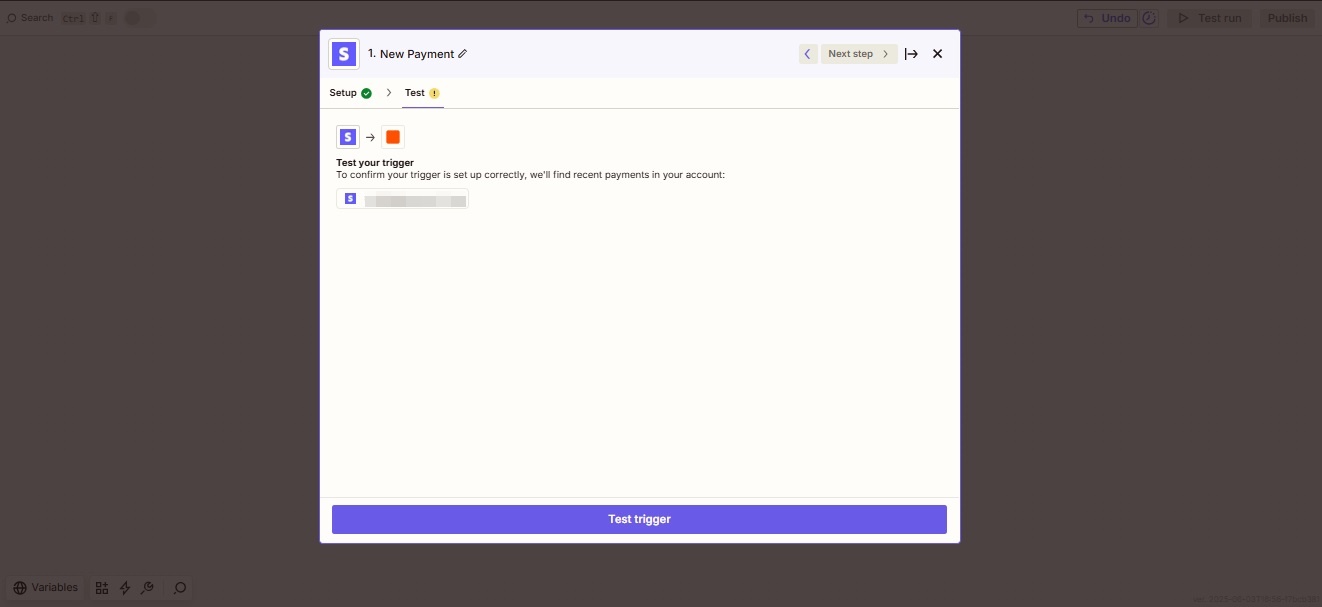
Then, click **Test trigger** to ensure the connection is working correctly.
You’ve now successfully set up the Zap to trigger when a new payment occurs in Stripe. Now it’s time to set up the action to trigger a referral using GrowSurf.
### Step 3: Set up the Zap action(s)
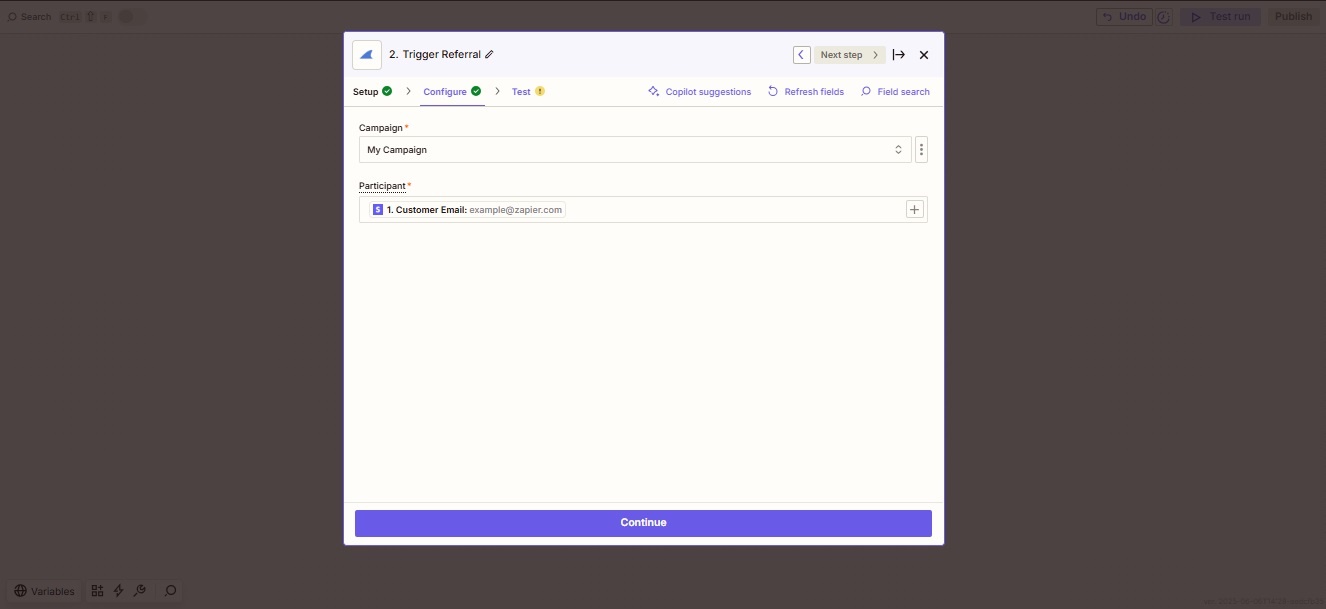
For the **Action** step, search for and select **GrowSurf**. Then, in the **Event** field, choose **Trigger referral**. Click the **Account** field and select your GrowSurf account, or click **Connect a new account** to link a new one. When you're done, click **Continue**.
Select your program from the **Campaign** field. In the **Participant Email** field, insert the customer’s email (e.g., the Stripe Customer Email). After that, click **Continue.**
Then, click the **Test step** button.
Click **Publish**. Your Zap is now live and will trigger a referral anytime you get a new payment in Stripe.
---
# Agent Instructions
This documentation is published with GitBook. GitBook is the documentation platform designed so that both humans and AI agents can read, navigate, and reason over technical content effectively. Learn more at gitbook.com.
## Querying This Documentation
If you need additional information that is not directly available in this page, you can query the documentation by asking a question.
Perform an HTTP GET request on the following URL with the `ask` and `goal` query parameters:
```
GET https://docs.growsurf.com/integrations/zapier/tutorials.md?ask=&goal=
```
`ask` is the immediate question: it should be specific, self-contained, and written in natural language.
`goal` is what the user is ultimately trying to achieve, the reason they need the answer. Sharing it helps GitBook give you a better, more relevant answer. A goal is most helpful when it describes the outcome the user wants rather than restating the question. For example, with `ask=how do I create an API token`, a goal like `automate deployments from our CI pipeline` lets GitBook tailor the answer to that use case.
The response will contain a direct answer to the question and relevant excerpts and sources from the documentation.
Use this mechanism when the answer is not explicitly present in the current page, you need clarification or additional context, or you want to retrieve related documentation sections.